How to Set Up Passkeys for Google, Apple, Microsoft and Amazon
Passkeys are the easiest real security upgrade you can make. Here's what they are, where to switch them on, and how to keep access if you lose your phone.
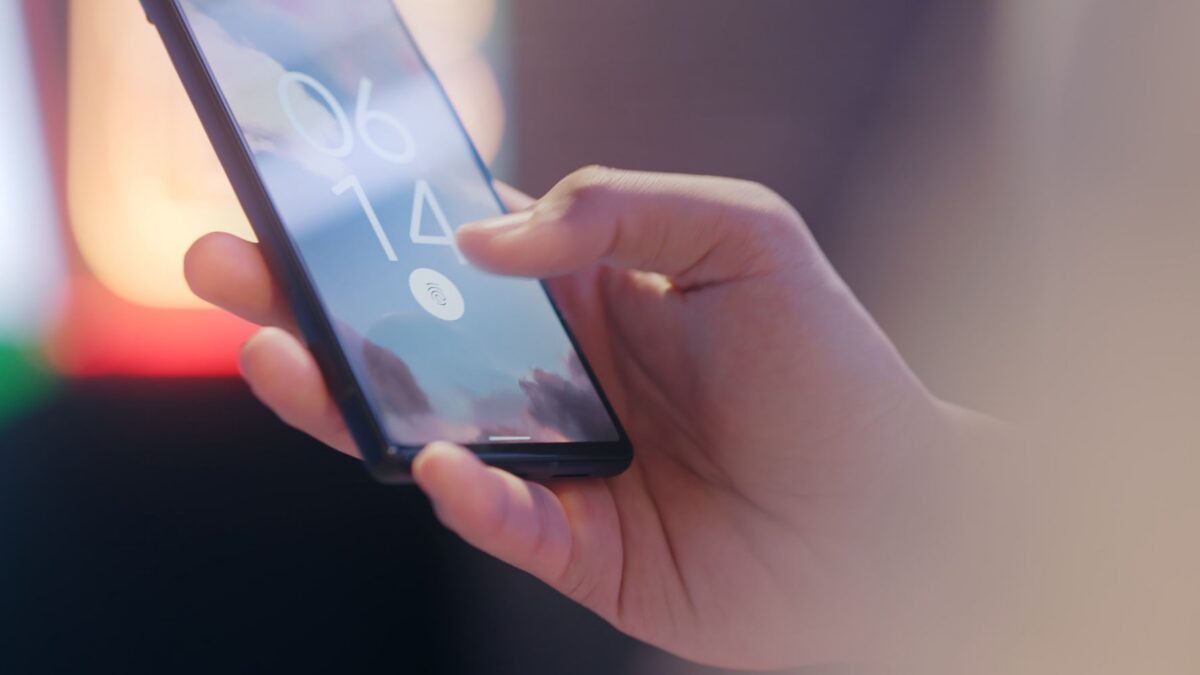
To set up a passkey, open the security settings of an account that supports them (Google, Microsoft, Amazon and many others do), choose Create a passkey or Add a passkey, and confirm with your phone or computer’s face scan, fingerprint or PIN. From then on you sign in by unlocking your device instead of typing a password. Keep at least one backup sign-in method so you can’t get locked out.
Passkeys are built on an industry standard backed by Apple, Google and Microsoft, so they work across most modern phones, computers and browsers.
What a passkey actually is
A passkey is a pair of cryptographic keys. One key stays with the website; the other is stored securely on your device or in your password manager. When you sign in, your device proves it has the matching key, after you unlock it with your face, fingerprint or screen lock.
That design fixes the biggest weaknesses of passwords:
- Nothing to phish. A passkey only works on the real site it was created for, so a fake login page can’t capture it.
- Nothing to reuse or leak. Every passkey is unique, and the site never stores a secret that could be stolen in a breach.
- Nothing to remember. You use the same face, fingerprint or PIN you already use to unlock your device.
Your fingerprint or face data is not sent to the website. It only unlocks the passkey on your own device.
Before you start: decide where your passkeys will live
A passkey is saved in a passkey provider, usually the same place your passwords are saved. Pick the one that matches the devices you use.
| Where it’s saved | Syncs to | Good for |
|---|---|---|
| Apple Passwords / iCloud Keychain | Your iPhone, iPad and Mac signed in to the same Apple Account | People who mostly use Apple devices |
| Google Password Manager | Android devices and Chrome where you’re signed in to your Google account | Android users and Chrome users |
| Windows Hello | Typically stays on that one Windows PC | A single Windows computer |
| Third-party password manager | Any device where you use that app | Households mixing iPhone, Android and Windows |
| Hardware security key | Stays on the physical key | Maximum security and backup |
If you already use a password manager everywhere, saving passkeys there keeps everything in one place.
How to set up a passkey for your Google account
- On a computer, go to myaccount.google.com and sign in. On Android, open Settings > Google > Manage your Google Account.
- Open the Security tab (on some screens it’s called Security & sign-in).
- Under How you sign in to Google, select Passkeys and security keys.
- Choose Create a passkey and follow the prompt to confirm with your device’s screen lock.
Android phones signed in to your Google account may already work as passkeys automatically. You’ll see them listed on the same page. Google’s passkeys help page has details for each platform.
How to set up passkeys on iPhone, iPad and Mac
Apple devices save passkeys in the Passwords app (iOS 18, iPadOS 18, macOS Sequoia and later), synced through iCloud Keychain.
- Make sure iCloud Keychain is on: Settings > [your name] > iCloud > Passwords (the label may read Passwords and Keychain depending on your iOS version).
- Go to any site or app that offers passkeys and look for Create a passkey in its security settings, or accept the prompt when you sign in.
- Confirm with Face ID or Touch ID. The passkey appears in the Passwords app.
To sign in on someone else’s computer, choose the passkey option on the site and scan the QR code it shows with your iPhone camera. Your phone and the computer need Bluetooth to confirm they’re near each other.
How to set up a passkey for your Microsoft account
- Sign in to your Microsoft account’s Advanced security options page (from account.microsoft.com, open Security and look for advanced or additional security options).
- Select Add a new way to sign in or verify.
- Choose Face, fingerprint, PIN, or security key.
- Follow the prompts. You can save the passkey to Windows Hello, your phone (by scanning a QR code) or a security key.
Microsoft has moved new personal accounts toward passkeys and passwordless sign-in by default. Work or school accounts use your organization’s settings instead.
How to set up a passkey for Amazon
- On Amazon’s website or app, go to Your Account > Login & security.
- Find Passkey and choose Set up.
- Confirm with your device’s face, fingerprint or PIN.
Menu labels on shopping apps change often. If you don’t see the option, check it on the website.
Using passkeys on other sites
Many banks, shopping sites, social networks and services such as PayPal now support passkeys. Look in each account’s Security or Login settings for “passkey,” or accept the offer when a site prompts you after sign-in.
Some sites treat a passkey as a replacement for your password; others add it alongside your password and existing two-factor authentication. Either way, it’s a step up.
How to avoid getting locked out
- Use a synced provider. Passkeys saved to Apple Passwords, Google Password Manager or a cross-platform password manager survive losing one device.
- Add more than one passkey for critical accounts, for example one on your phone and one on a security key.
- Keep a backup method. Don’t remove your recovery email, recovery phone or backup codes from your main accounts.
- Protect the provider account. Your Apple Account or Google account now guards your passkeys, so it needs strong 2FA and a current recovery contact.
- Moving providers? Newer versions of iOS, Android and several password managers are adding a secure way to transfer passkeys between apps. If yours doesn’t support it yet, simply create a new passkey in the new provider and delete the old one.
Bottom line
Passkeys are faster than passwords and far harder to steal. Start with your email account (Google or Microsoft), then add them to Amazon, your bank and any other account that offers them. Save them in a provider that syncs across your devices and keep a backup sign-in method, and you’ll get the security benefit without the lockout risk.
FAQ
Are passkeys safer than passwords with 2FA?
Generally, yes. Passkeys resist phishing by design, while passwords and text-message codes can be typed into fake sites. Keep 2FA on as a backup method anyway.
What happens if I lose my phone?
If your passkeys are synced through iCloud Keychain, Google Password Manager or a password manager, they’re available again when you sign in on a new device. If they lived only on the lost phone, use your account’s backup method and create new passkeys.
Can I use an iPhone passkey on a Windows PC?
Yes. Choose the passkey or “use another device” option on the PC, scan the QR code with your iPhone and confirm with Face ID. A cross-platform password manager is another option.
Can a website see my fingerprint?
No. Your fingerprint or face only unlocks the passkey on your device. The website receives a cryptographic proof, not your biometric data.



