How to Free Up Storage on Android: Files by Google, Cache, Photos and SD Cards
Running out of space on your Android phone? These are the built-in tools that safely clear junk, duplicate files and backed-up photos, plus when an SD card helps.
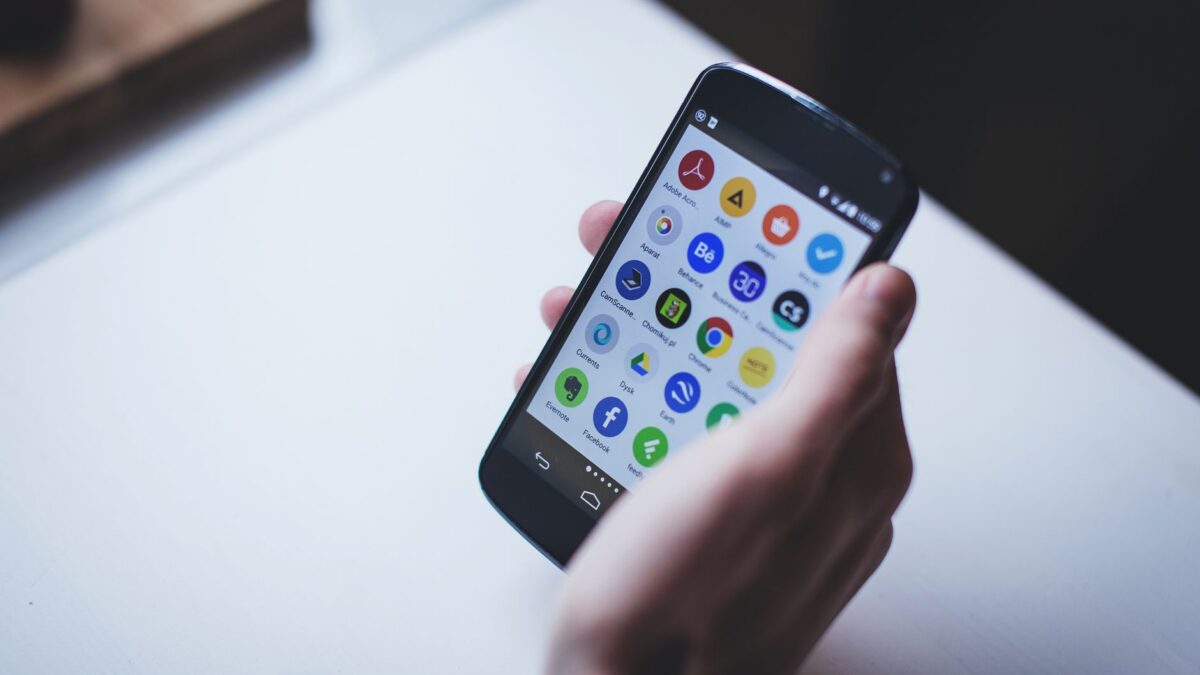
The fastest way to free up storage on Android is to open the Files by Google app, tap Clean, and act on the suggestions for junk files, duplicates and large files. After that, use Free up space in Google Photos to remove photos that are already backed up, clear the cache of the biggest apps, and on Samsung phones run the storage cleaner in Device care.
Menu names vary between Android brands and versions, so the steps below note where Pixel and Samsung differ.
Step 1: Check what’s taking up space
- Pixel and most stock-Android phones: Open Settings > Storage. You’ll see categories such as Apps, Images, Videos, Audio, Documents and System. On many phones there’s a Free up space button that opens Files by Google.
- Samsung Galaxy: Open Settings > Device care > Storage (on some One UI versions it’s called Battery and device care). This shows a breakdown by category and suggestions for cleanup.
Note which category is largest. If it’s Images and Videos, start with Step 3. If it’s Apps, start with Step 4.
Step 2: Use Files by Google to clean junk and duplicates
Files by Google comes preinstalled on Pixel and many other Android phones and is free in the Play Store for the rest.
- Open Files by Google.
- Tap Clean (on some versions you open the menu first).
- On the Junk files card, tap the clean button and confirm.
- Scroll down to the other cards, such as Delete duplicate files, Large files, Old screenshots and downloaded files, and review each one.
Junk files are temporary files apps no longer need, so clearing them won’t change your app settings. Google warns that files deleted this way are permanently removed, so look through the duplicate and large-file lists before confirming. Google’s help page on clearing junk files has the current steps.
Step 3: Free up backed-up photos in Google Photos
If Google Photos backup is on, copies of your photos already live in your Google account, and the copies on the phone are just taking up room.
- Open Google Photos and confirm backup is complete (tap your profile picture to see backup status).
- Tap your profile picture again and choose Free up space (sometimes shown as Free up space on this device).
- Review how many items will be removed and confirm.
The photos stay in your Google Photos library and remain viewable online. Keep in mind that your Google account’s free storage (15 GB) is shared with Gmail and Drive, so a big library may need a paid Google One plan. If you’re weighing services, see our Google Photos vs iCloud Photos comparison.
On Samsung phones, also check the Recycle bin (or Trash) in the Gallery app: deleted photos sit there for a period before being removed and still count against storage.
Step 4: Clear app cache and data
Streaming, social and browser apps can store gigabytes of cached data.
- Go to Settings > Apps (on some phones, Apps & notifications > See all apps).
- Tap an app, then Storage or Storage & cache.
- Tap Clear cache.
| Option | What it does | Risk |
|---|---|---|
| Clear cache | Deletes temporary files the app can re-download | Low; the app may load slower at first |
| Clear storage / Clear data | Resets the app to a fresh install | High; you lose offline files, logins and unsynced data |
| Uninstall | Removes the app completely | Data not backed up elsewhere is gone |
Only use Clear storage if you know the app syncs everything to the cloud. For browsers, you can also clear site data from inside the browser; our guide to clearing cache in Chrome and other browsers walks through it.
Archive apps instead of uninstalling
Recent versions of Android and the Play Store can archive apps you rarely use: the app is removed but its data is kept, and the icon stays so you can restore it. Look for an Archive option on the app’s info page or an automatic archiving setting in the Play Store’s settings. Availability depends on your Android version and the app.
Step 5: Run Samsung’s Device care cleaner
On Galaxy phones, Settings > Device care > Storage offers a cleanup option that removes files the phone has already flagged as unnecessary. It doesn’t touch your personal photos. The same screen lists large files, duplicates and unused apps you can review. You don’t need third-party “cleaner” or “booster” apps, which often add ads and request broad permissions.
Step 6: Use a microSD card if your phone has a slot
Many budget and mid-range Android phones still have a microSD slot, while most current flagships, including recent Pixel and Galaxy S models, do not. If yours has one:
- Set the camera to save photos and videos to the SD card in the camera app’s settings.
- Move existing media with Files by Google or Samsung’s My Files app.
- Choose a reputable card rated A1 or A2 and U3/V30 if you record video.
Moving apps to SD cards is limited on modern Android and many apps don’t allow it, so treat the card mainly as storage for media and documents.
Other quick wins
- WhatsApp and Telegram: Use their built-in storage managers to delete large videos from busy group chats.
- Downloads folder: Old PDFs, APKs and installers pile up here.
- Offline maps, music and video: Remove downloads you no longer need inside each app.
If storage is still full and the System category is unusually large, installing pending updates and restarting can help. A factory reset is the last resort, and only after you’ve backed everything up.
Bottom line
Start with Files by Google > Clean, then free up backed-up photos in Google Photos and clear cache for the biggest apps. Samsung owners can add the Device care cleaner. Check the photo trash bins, avoid “Clear storage” unless you’re sure the app syncs, and skip third-party cleaner apps.
FAQ
Is it safe to clear cache on Android?
Yes. Cache is temporary data the app can rebuild. You won’t lose logins or settings; the app may just load a bit slower the next time you open it.
Does “Free up space” in Google Photos delete my photos?
It deletes only the copies on your phone that are already backed up. They remain in your Google Photos account, viewable on any device.
Why is “System” storage so large?
It includes the Android operating system, updates and system files you can’t remove. It varies by phone and grows slightly with major updates.
Do I need a cleaner app from the Play Store?
Generally no. Files by Google and Samsung’s Device care do the same job without extra ads or permissions.



