How to Mirror Your Phone to a TV: AirPlay, Google Cast, Smart View and HDMI
Which method works depends on your phone and your TV. Here's how AirPlay, Google Cast, Smart View, Miracast and wired HDMI compare, with steps for each.
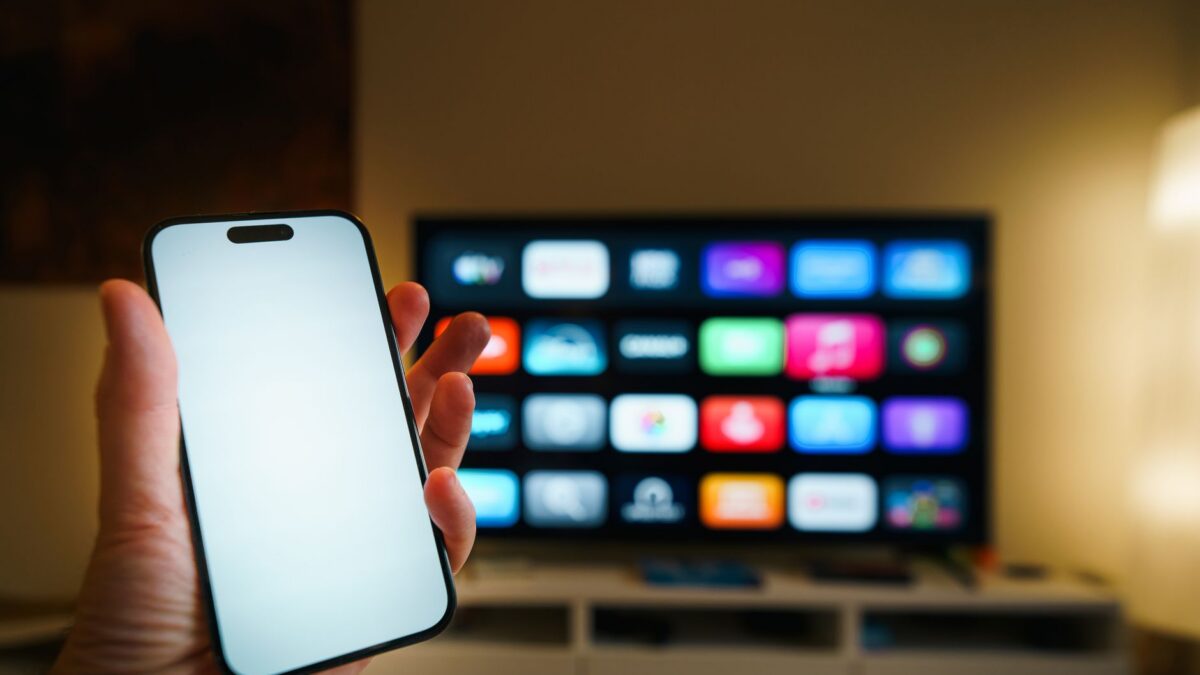
To mirror an iPhone to a TV, open Control Center, tap Screen Mirroring and pick an Apple TV or AirPlay-compatible TV. On Android, use the Cast or Screen Cast tile in Quick Settings (or the Google Home app) for TVs with Google Cast, or Smart View on Samsung phones. If wireless isn’t an option, a USB-C or Lightning to HDMI adapter works with many phones.
Keep the phone and TV on the same Wi-Fi network for any wireless method. Below is what works with what, and step-by-step instructions.
Which method works with your TV?
| Method | Phones | Works with | Notes |
|---|---|---|---|
| AirPlay | iPhone, iPad | Apple TV; many recent Samsung, LG, Vizio, Sony and Roku models with AirPlay | Check your TV’s settings or manual for “AirPlay” |
| Google Cast | Android (and casting from apps on iPhone) | Chromecast, Google TV Streamer, TVs with Google TV or Android TV, many TVs with Chromecast built in | Full-screen mirroring is Android-only |
| Smart View | Samsung Galaxy | Samsung TVs and many Miracast-compatible TVs | Built into the Galaxy Quick Panel |
| Miracast | Many Android phones (not Pixel or iPhone) | Fire TV, many Roku devices and some smart TVs | Wi-Fi Direct; support varies by phone |
| HDMI adapter | iPhone with USB-C or Lightning; Android phones with USB-C video output | Any TV with an HDMI port | No Wi-Fi needed; check your phone supports video out |
Mirroring vs casting: what’s the difference?
Mirroring shows exactly what’s on your phone screen, including notifications. Casting from an app, like tapping the Cast or AirPlay icon in a video app, tells the TV to play the content directly. Casting usually gives better quality, keeps playing if you lock your phone, and lets you use the phone for other things. Use casting for video and mirroring for photos, presentations, websites or apps without a cast button.
How to mirror an iPhone with AirPlay
- Connect your iPhone and the Apple TV or AirPlay TV to the same Wi-Fi network.
- Open Control Center (swipe down from the top-right corner on iPhones with Face ID).
- Tap Screen Mirroring (the two overlapping rectangles).
- Choose your TV. If a code appears on the TV, enter it on the iPhone.
- To stop, open Control Center, tap Screen Mirroring, then Stop Mirroring.
If your TV doesn’t appear, make sure AirPlay is turned on in the TV’s settings, update the TV’s software, and restart both devices. Rotating the phone to landscape fills more of the screen when mirroring photos or videos.
How to mirror an Android phone with Google Cast
Pixel and phones with a Cast tile
- Swipe down twice from the top to open Quick Settings.
- Tap Screen Cast (or Cast). If it’s not there, tap the edit (pencil) icon and add it.
- Choose your Chromecast or Google TV device and confirm.
Using the Google Home app
- Open Google Home.
- Tap the TV or streaming device you want to use.
- Tap Cast my screen and confirm.
Exact labels shift between Android and Google Home app versions, but the Cast option is usually under one of these names.
How to mirror a Samsung Galaxy with Smart View
- Swipe down twice to open the Quick Panel.
- Tap Smart View (swipe left through the tiles if you don’t see it).
- Select your TV and tap Start now.
- On some TVs you’ll need to allow the connection with the remote.
Smart View works best with Samsung TVs but can also connect to many other Miracast-capable TVs and streaming sticks.
Roku and Fire TV notes
- Roku: Many Roku players and Roku TVs support AirPlay for iPhone, and many also accept screen mirroring from Android and Windows devices that use Miracast. Support depends on the model and Roku OS version, so check Settings > System on your Roku for Screen mirroring and Apple AirPlay options.
- Fire TV: Most Fire TV devices can receive Miracast from compatible Android phones. Hold the Home button on the remote and choose Mirroring, then pick the Fire TV from your phone’s cast or Smart View menu. Fire TV sticks don’t generally support AirPlay or full-screen Google Cast mirroring, although some Fire TV smart TVs include AirPlay.
- Pixel phones and iPhones don’t use Miracast, so they can’t mirror to a Fire TV without a third-party app. Only install receiver apps from the official app store and be wary of apps asking for unnecessary permissions.
Use an HDMI adapter for a wired connection
A wired connection avoids Wi-Fi lag and works in hotels or anywhere without a shared network.
- iPhone 15 and later (USB-C): A USB-C to HDMI adapter or a USB-C cable with DisplayPort support connected to an HDMI adapter carries video. Our USB-C cables explainer covers which cables support video.
- iPhone 14 and earlier (Lightning): Apple’s Lightning Digital AV Adapter connects to an HDMI cable.
- Android: Only phones with USB-C video output (DisplayPort Alt Mode) work, including many Samsung Galaxy flagships, which can also run the DeX desktop mode on the TV. Many budget phones don’t support it, so check your phone’s specifications before buying an adapter.
Why some apps show a black screen
Some streaming services block mirroring or wired output of protected video to prevent copying. You’ll see a black screen or an error while the audio keeps playing. The fix is to use the app’s own Cast or AirPlay button, or the service’s app on your TV or streaming stick, rather than trying to work around the protection. If you want to save something from your screen for yourself, our guide to built-in screen recording explains what’s allowed and why protected video records as black.
Bottom line
iPhone users should use AirPlay to an Apple TV, Roku or AirPlay TV. Android users should use Google Cast to Chromecast and Google TV devices, or Smart View and Miracast for Samsung TVs, Fire TV and many Rokus. For a lag-free connection anywhere, an HDMI adapter works if your phone supports video output. For streaming apps, cast from the app instead of mirroring the whole screen.
FAQ
Can I mirror my phone to a TV without Wi-Fi?
Yes, with an HDMI adapter. Miracast also uses a direct Wi-Fi connection that doesn’t need a router, but support varies by phone and TV.
Why is mirroring laggy?
Wireless mirroring compresses your screen in real time. A busy or weak Wi-Fi network adds delay. Move closer to the router, use 5 GHz Wi-Fi, or switch to casting or an HDMI cable.
Can I mirror an iPhone to a Chromecast?
Not natively. iPhones can cast from apps that support Google Cast, such as many video apps, but full-screen mirroring needs AirPlay.
Do notifications show on the TV while mirroring?
They can. Turn on a Focus mode on iPhone or Do Not Disturb on Android before mirroring in front of others.



