Windows 10 End of Support: What to Do Now (ESU, Windows 11 Upgrade or Alternatives)
Your Windows 10 PC still works, but it needs a plan. Here's how ESU, the Windows 11 upgrade and the alternatives compare, step by step.

Microsoft ended mainstream support for Windows 10 on October 14, 2025. Your PC keeps working, but it only receives security fixes if you enroll in Extended Security Updates (ESU), which for home users now runs until October 12, 2027. The best long-term move is to upgrade to Windows 11 for free if your PC qualifies; if it doesn’t, enroll in ESU to buy time, then replace the PC or switch to an alternative such as ChromeOS Flex or Linux.
What “end of support” actually means
- No more free security updates for Windows 10 itself, unless you’re enrolled in ESU.
- No new features or technical support from Microsoft.
- Your files, apps and the PC keep working. Nothing shuts off.
- Over time, apps and browsers will stop supporting Windows 10, and an unpatched PC becomes a bigger target for malware.
Microsoft has said it will keep providing some updates for Microsoft 365 apps and Microsoft Defender security intelligence on Windows 10 for a while longer, but those don’t fix vulnerabilities in Windows itself.
Your four options at a glance
| Option | Cost | Best for | Main drawback |
|---|---|---|---|
| Upgrade to Windows 11 | Free on eligible PCs | PCs that pass the compatibility check | Some interface changes to learn |
| Enroll in Windows 10 ESU | Free with settings sync, 1,000 Rewards points, or about $30 | Older PCs you plan to replace | Temporary: ends October 12, 2027 |
| Switch to ChromeOS Flex or Linux | Free | Older PCs used mainly for browsing | Windows programs won’t run |
| Buy a new computer | Varies | PCs that are slow or several years old | Cost |
Step 1: Check if your PC can run Windows 11
Windows 11 requires a supported processor (roughly Intel 8th-generation or AMD Ryzen 2000-series and newer, with exceptions), 4 GB of RAM, 64 GB of storage, UEFI with Secure Boot capability and TPM 2.0.
- Download and install the PC Health Check app from Microsoft (search for it on microsoft.com).
- Open it and select Check now under the Windows 11 section.
- If it says your PC meets the requirements, you can upgrade.
- If it fails, read the reason. A message about TPM or Secure Boot sometimes means the feature exists but is turned off in your PC’s UEFI/BIOS settings; your PC maker’s support site explains how to enable it. A message about the processor usually can’t be fixed.
Microsoft doesn’t support installing Windows 11 on PCs that fail the requirements, and those PCs may not get updates, so we don’t recommend workarounds.
Step 2: Back up before changing anything
- Copy your documents, photos and other personal files to an external drive or cloud storage.
- Note which programs you use and make sure you have license keys or account logins for paid software.
- Optionally, use the built-in Windows Backup app (search for it in the Start menu) to back up your settings and folders to your Microsoft account. This also counts toward free ESU enrollment.
Step 3a: Upgrade to Windows 11
- Go to Settings > Update & Security > Windows Update.
- Select Check for updates. If the Windows 11 upgrade is offered, choose Download and install.
- If it isn’t offered yet but PC Health Check says your PC qualifies, use the Windows 11 Installation Assistant from Microsoft’s Windows 11 download page.
- Keep the PC plugged in. The upgrade can take an hour or more and restarts several times. Your files and most apps stay in place.
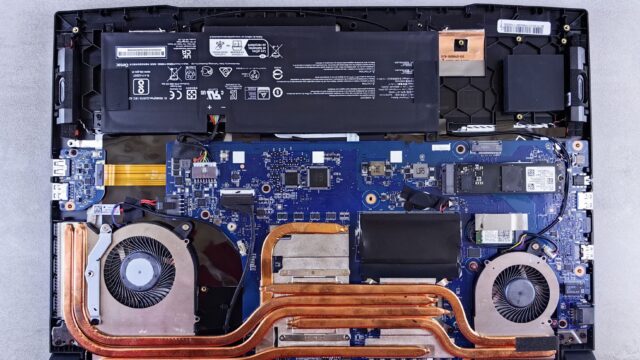
After upgrading, our guide on speeding up Windows 11 covers the settings worth checking first. If the PC feels sluggish, a newer SSD often helps more than anything else; see how to upgrade a laptop SSD.
Step 3b: Enroll in Windows 10 ESU
If your PC can’t run Windows 11, the consumer ESU program keeps critical and important security updates coming until October 12, 2027. According to Microsoft’s Windows 10 ESU page, you can enroll in one of three ways:
- At no extra cost by syncing your PC settings to your Microsoft account with Windows Backup.
- By redeeming 1,000 Microsoft Rewards points.
- With a one-time purchase of about $30 (plus tax), or the local equivalent.
In the European Economic Area, Microsoft lets users enroll for free by signing in with a Microsoft account. One ESU license covers up to 10 devices on the same Microsoft account. Terms have changed more than once, so check Microsoft’s page for the latest details.
- Make sure your PC is on Windows 10 version 22H2 with recent updates installed (Settings > System > About shows your version).
- Sign in to Windows with a Microsoft account that’s an administrator on the PC.
- Go to Settings > Update & Security > Windows Update.
- Look for the Enroll now link for Extended Security Updates and follow the prompts to choose an option.
If you already enrolled before the 2026 extension, Microsoft says your coverage continues automatically to the new end date.
Step 3c: Try ChromeOS Flex or Linux
If you mostly use a browser, email and streaming, a free alternative can give an older PC years of secure updates.
- ChromeOS Flex is Google’s free version of ChromeOS for existing PCs and Macs. Check that your model is on Google’s certified list, and note that Flex doesn’t run Android apps. Learn more about how ChromeOS works in our Chromebook explainer.
- Linux distributions such as Linux Mint and Ubuntu are free, beginner-friendly and run on most older hardware. You get a full desktop with LibreOffice, Firefox and many apps, but not Windows programs like Microsoft Office desktop apps or many games.
Both options usually erase the drive when installed. Test them first from a USB stick, which lets you try without changing anything, and back up your files.
Step 3d: Replace the PC
If your computer is more than six or seven years old, slow, or fails the Windows 11 check, putting the money toward a new machine may make more sense. Our guide to choosing a laptop explains which specs matter. Before disposing of an old PC, back up, sign out of accounts and use Settings > Update & Security > Recovery > Reset this PC with the option to remove everything.
If you stay on Windows 10 without ESU
We don’t recommend it, especially for banking or work. If you must, keep your browser updated, use Microsoft Defender or another current security tool, avoid unknown downloads and plan your move soon.
Bottom line
Run PC Health Check today. If your PC qualifies, back up and upgrade to Windows 11 for free. If not, enroll in ESU, often free through Windows Backup, and use the time until October 2027 to replace the PC or move to ChromeOS Flex or Linux.
FAQ
Will my Windows 10 PC stop working?
No. It keeps running, but without ESU it no longer receives security fixes, which raises the risk over time.
Is the Windows 11 upgrade still free?
Yes, for PCs that meet the requirements and have a genuine, activated copy of Windows 10.
How long does consumer ESU last?
Until October 12, 2027, after Microsoft extended the home-user program in 2026. Check Microsoft’s ESU page for any further changes.
Can I go back to Windows 10 after upgrading?
For about 10 days after upgrading, Windows 11 offers a Go back option under Settings > System > Recovery. After that, you’d need a clean reinstall.