How to Upgrade a Laptop SSD: Check Compatibility, Clone or Reinstall, and Install Safely
A bigger, faster SSD is one of the most useful laptop upgrades, if your laptop allows it. Here's how to check, what to buy and how to move your data.
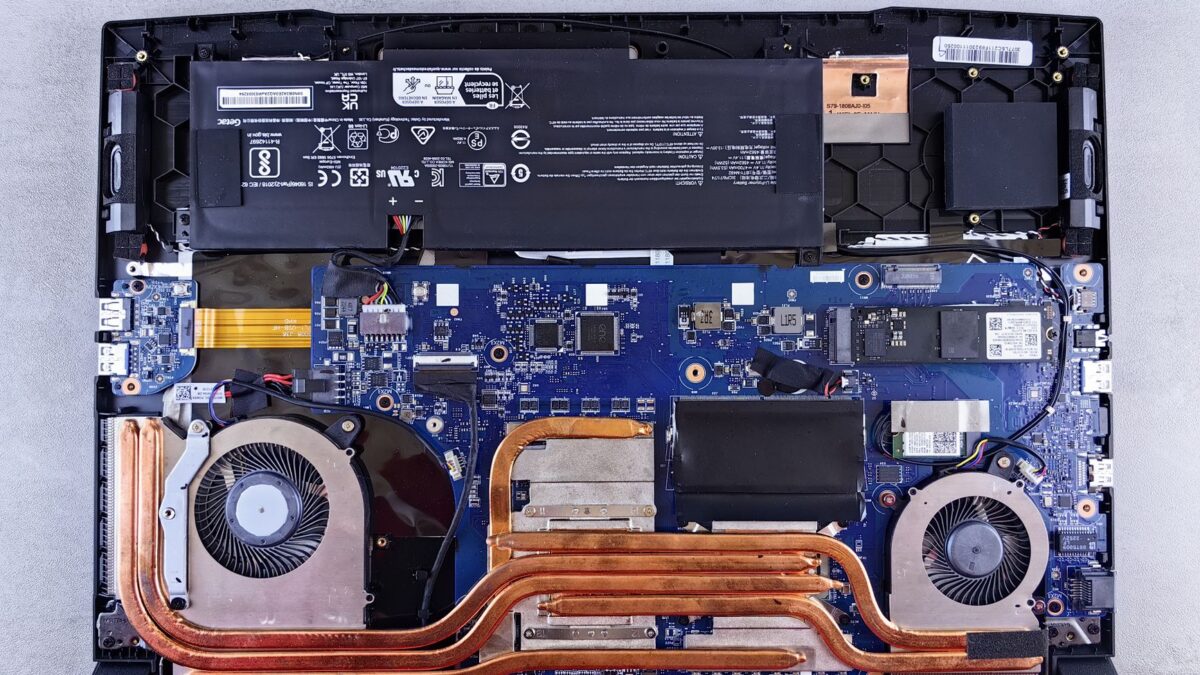
To upgrade a laptop SSD, first confirm the drive is replaceable (not soldered to the motherboard), then buy a drive with the right interface (NVMe or SATA) and size (usually M.2 2280, sometimes 2230 or 2242). Back up, then either clone the old drive to the new one or do a clean install of Windows, and swap the drive with the laptop powered off and unplugged. Expect about an hour if you’re careful.
Step 1: Check whether your laptop’s SSD can be upgraded
Many thin laptops and all current MacBooks have storage soldered to the motherboard, which means it can’t be upgraded. To find out about your model:
- Find your exact model number on the sticker underneath, or in Windows under Settings > System > About.
- Search the manufacturer’s support site for the model’s service manual or user guide. These show the drive type, the slot and how to open the case.
- Check the warranty terms. Most manufacturers let you upgrade storage, but damage you cause during the work typically isn’t covered.
Some laptops have a second, empty M.2 slot. If yours does, you can add a drive without touching the original, which is simpler and safer.
Step 2: Identify the right drive
| Type | What it looks like | Speed | Notes |
|---|---|---|---|
| M.2 NVMe (PCIe) | Small stick-shaped board, usually one notch (M key) | Fastest; several thousand MB/s on PCIe 4.0 | Most laptops from the last several years |
| M.2 SATA | Same shape, usually two notches (B+M key) | Up to about 550 MB/s | Older laptops; not interchangeable with NVMe in every slot |
| 2.5-inch SATA | Rectangular case, same size as an old laptop hard drive | Up to about 550 MB/s | Older laptops; huge upgrade over a spinning hard drive |
Also check:
- Length: M.2 sizes are named by width and length in millimeters. 2280 (22 mm by 80 mm) is the most common; compact laptops and handhelds often use 2230 or 2242. A longer drive won’t fit.
- PCIe generation: a PCIe 4.0 drive works in a PCIe 3.0 slot but runs at the slower speed. Paying extra for PCIe 5.0 rarely makes sense in a laptop.
- Single-sided vs double-sided: very thin laptops may need a single-sided drive.
- Heat: if the old drive has a thermal pad or metal shield, reuse it.
Check the drive’s spec sheet for these details, and buy from a reputable seller. Counterfeit drives that report fake capacities do turn up on marketplaces.
Step 3: Prepare
- Back up your important files to an external drive or cloud storage, even if you plan to clone.
- Get your BitLocker recovery key if your drive is encrypted. Many Windows 11 laptops turn on device encryption automatically. Check at Settings > Privacy & security > Device encryption (or search for BitLocker), and find the key in your Microsoft account under your devices. Without it, you could be locked out.
- Gather tools: the correct small screwdriver (often Phillips #0 or Torx, check the manual), a plastic pry tool for clips, and a small container for screws.
- For cloning: an M.2 or SATA USB enclosure, so you can connect the new drive before installing it. Not needed if your laptop has a second slot.
- For a clean install: an 8 GB or larger USB stick to create Windows installation media.
Step 4: Clone or clean install?
| Clone | Clean install | |
|---|---|---|
| What it does | Copies Windows, apps, settings and files to the new drive | Installs fresh Windows; you reinstall apps and restore files |
| Time | Usually faster overall | Longer, because of app reinstalls |
| Best when | Your current Windows runs well | Your PC is slow, cluttered or has had problems |
| Tools | Cloning software, often free from SSD makers for their own drives | Microsoft’s Media Creation Tool |
Cloning steps
- Put the new SSD in the USB enclosure and connect it to the laptop.
- Install the cloning tool recommended by the SSD’s manufacturer. Download it only from their official website.
- Select the current drive as the source and the new SSD as the target. Double-check, because the target is erased.
- Let the clone finish, then shut down and swap the drives (Step 5).
Clean install steps
- On a working PC, download Microsoft’s Media Creation Tool from the official Windows 11 download page and create a USB installer.
- Install the new SSD (Step 5).
- Boot from the USB stick, usually by pressing a key like F12, F2 or Esc at startup (check your model).
- Follow the setup and select the new drive. Windows normally reactivates automatically on the same hardware if it was activated before.
- Install your PC maker’s drivers and updates from their support site, then restore your files.
Step 5: Swap the drive safely
- Shut down fully (not sleep), unplug the charger and disconnect all accessories.
- Remove the bottom panel screws, noting any different lengths, and release the clips with a plastic tool.
- If the manual says to, disconnect the battery connector before touching components.
- Touch a grounded metal object first to discharge static, and handle the SSD by its edges.
- Remove the screw holding the old drive. It will pop up at an angle.
- Insert the new drive into the slot at the same angle, press it down and secure the screw.
- Reconnect the battery, refit the panel and power on.
Never pry near a swollen battery. If the battery looks puffy, stop and get it serviced professionally.
Step 6: Check everything works
- Open File Explorer > This PC to confirm the full capacity.
- If you cloned to a larger drive and see unallocated space, extend the partition in Disk Management (right-click Start), or use your cloning tool’s resize option.
- Run Windows Update and install the SSD maker’s utility for firmware updates.
- Keep the old drive untouched for a week or two, then wipe it securely before reusing or recycling it.
Bottom line
Check your manual first: if the SSD isn’t soldered, match the interface and M.2 length, back up and save your BitLocker key, then clone or clean install. Work with the power off and the battery disconnected if the manual says so. For more ways to speed up an older machine, see our guides to speeding up Windows 11 and easy computer tune-ups. If your laptop can’t be upgraded at all, our laptop buying guide helps you pick the right storage next time.
FAQ
Can I put an NVMe SSD in a SATA M.2 slot?
Not usually. Some slots support both, but many support only one. Check the manual or spec sheet.
Will I need to buy Windows again?
Normally no. Windows linked to your hardware or Microsoft account reactivates on the same laptop after an SSD swap.
Can I upgrade a MacBook’s SSD?
Not on current Apple Silicon MacBooks, which have storage built into the motherboard. Choose enough storage when you buy.
Is cloning safe?
Yes, with reputable software and a backup. The main risk is choosing the wrong target drive, which gets erased.