USB-C Cables Explained: Watts, Speeds and Labels Decoded
Every USB-C cable looks the same, but they charge and transfer data at wildly different rates. Here's how to read the labels and buy the right one.
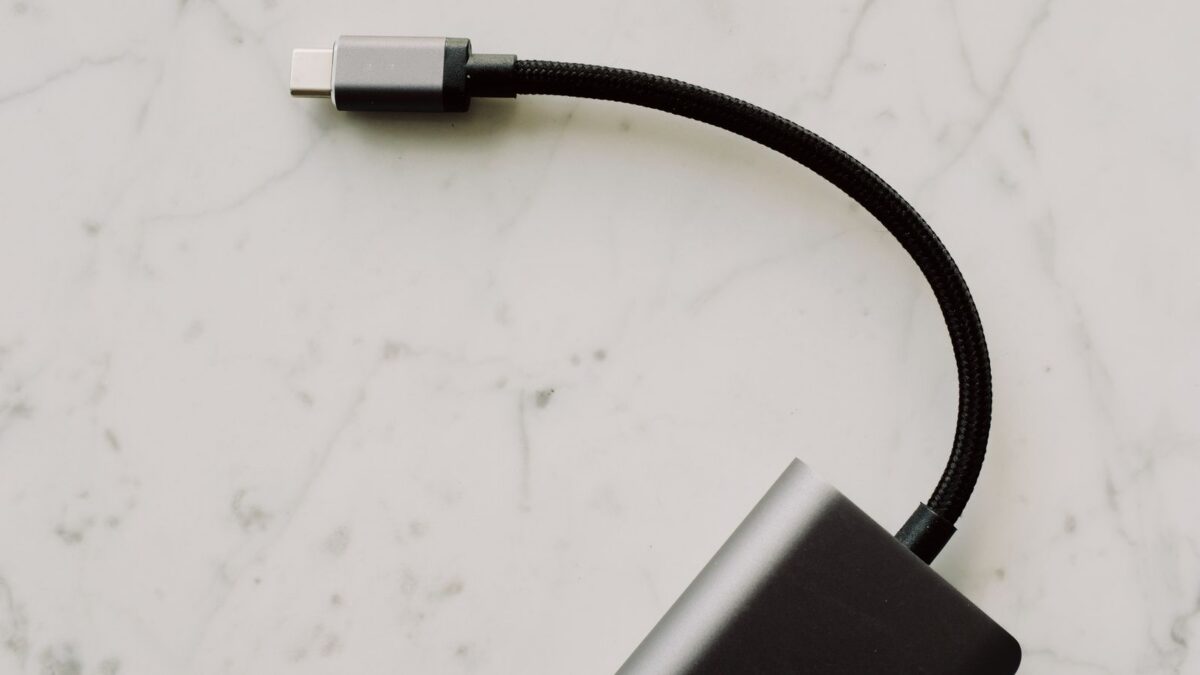
USB-C describes only the shape of the plug. What a cable can actually do depends on two separate ratings: how much power it can carry (60W, 100W or 240W) and how fast it can move data (from slow USB 2.0 at 480 Mbps up to 80 Gbps for USB4 Version 2.0 and Thunderbolt 5). For charging a phone, almost any decent USB-C cable works. For a laptop, an external SSD or a monitor, check both numbers before you buy.
Power: how many watts a USB-C cable can carry
Fast charging over USB-C uses USB Power Delivery (USB PD). The charger, cable and device negotiate the highest power all three can safely handle. The cable sets a hard ceiling based on how much current it’s built for.
| Cable rating | Max current | Max power | Good for |
|---|---|---|---|
| Standard (3A) | 3 amps at up to 20V | 60W | Phones, tablets, earbuds, small laptops |
| 5A, e-marked | 5 amps at up to 20V | 100W | Most laptops |
| EPR (Extended Power Range), e-marked | 5 amps at up to 48V | 240W | Power-hungry laptops, gaming laptops, docks, some monitors |
Anything above 60W needs an e-marker: a tiny chip in the plug that tells the charger the cable can handle more current. Without it, a 140W laptop charger will deliver no more than 60W through that cable, so your laptop charges slowly or drains while in use.
EPR was introduced with USB PD 3.1. It raises voltage rather than current to reach 140W, 180W or 240W, which is why an older “100W” cable can’t carry it.
Does a higher-watt cable damage my phone?
No. A 240W cable is just a cable with headroom. Your phone only draws what it’s designed for, and the charger and phone agree on that before raising power.
Data: how fast a USB-C cable can transfer
Data speed is a completely separate rating. Many charging cables, including the ones bundled with lots of phones, are only USB 2.0 speed internally, even though they have USB-C plugs at both ends.
| Name you’ll see | Older/technical name | Max data speed | Typical use |
|---|---|---|---|
| USB 2.0 | USB 2.0 Hi-Speed | 480 Mbps | Charging, keyboards, syncing a phone |
| USB 5Gbps | USB 3.2 Gen 1 (USB 3.0) | 5 Gbps | External hard drives, basic SSDs |
| USB 10Gbps | USB 3.2 Gen 2 | 10 Gbps | Most external SSDs |
| USB 20Gbps | USB 3.2 Gen 2×2 | 20 Gbps | Fast SSDs (limited device support) |
| USB 40Gbps | USB4 (Version 1) | 40 Gbps | Docks, displays, fast SSD enclosures |
| Thunderbolt 3 / 4 | Intel Thunderbolt | 40 Gbps | Docks, eGPUs, multiple monitors |
| USB 80Gbps | USB4 Version 2.0 | 80 Gbps (up to 120 Gbps one way) | High-end docks, multiple high-resolution displays |
| Thunderbolt 5 | Intel Thunderbolt 5 | 80 Gbps (up to 120 Gbps one way) | Pro workstations, fast storage arrays |
The “120 Gbps” figure for USB4 Version 2.0 and Thunderbolt 5 is an asymmetric mode used mainly to drive big displays; normal two-way speed is 80 Gbps.
Video over USB-C
Connecting a monitor over USB-C uses DisplayPort Alternate Mode or a USB4/Thunderbolt link. A USB 2.0-only cable can’t carry video. To put a phone screen on a TV instead, see how to mirror your phone to a TV. For a monitor, use a cable rated at least USB 10Gbps for basic setups, or a USB4/Thunderbolt cable for high resolutions and docks.
How to read USB-C cable labels
The USB Implementers Forum (USB-IF), the group behind the standard, simplified its branding. Certified cables now carry logos showing the data speed and power directly, such as “USB 40Gbps” plus “240W”. Thunderbolt cables carry a lightning-bolt logo with the version number (4 or 5).
- Look for both numbers on the packaging or in the listing: speed (Gbps) and power (W).
- If only watts are listed, assume the cable is USB 2.0 speed unless stated otherwise.
- If only speed is listed, assume 60W unless it says 100W or 240W.
- Be cautious with marketplace listings that claim “USB-IF certified” or “120Gbps”. Not all claims are genuine, and most cables on sale aren’t certified at all. USB-IF publishes a searchable list of certified products if you want to verify a specific model.
Length matters
High-speed signals degrade over distance. Long cables (around 2 meters and up) are usually USB 2.0 data or rely on built-in electronics (active cables) to keep USB4/Thunderbolt speeds, which makes them pricier. Short passive cables (well under 1 meter) are the cheapest way to get 40 or 80 Gbps. Charging capability doesn’t depend on length the same way, so a long 240W charging cable is easy to find.
How to pick the right USB-C cable
- Phone or earbuds charging: any reputable USB-C cable rated 60W. Data speed doesn’t matter much.
- Laptop charging: match or exceed your charger’s wattage. For chargers over 100W (for example 140W), buy a 240W EPR cable.
- External SSD: at least USB 10Gbps; use the short cable that came with the drive if it has one.
- Monitor or dock: a USB4 40Gbps or Thunderbolt 4 cable, or 80Gbps/Thunderbolt 5 for newer high-end docks.
- One cable for everything: a short USB4 40Gbps or 80Gbps, 240W cable handles charging, data and video, at a higher price.
Safety tip: avoid no-name cables that are suspiciously cheap for their claimed rating, and replace any cable with frayed insulation, a loose plug or one that gets hot while charging.
Why your port matters too
The slowest part of the chain wins. A Thunderbolt 5 cable plugged into a USB 5Gbps port runs at 5 Gbps. Some laptops have USB-C ports with different abilities on each side, often marked with a small lightning bolt (Thunderbolt), a “DP” or display icon, or a battery icon for charging. Check your laptop’s spec sheet or manual to know which port does what.
Bottom line
Every USB-C cable has two ratings: watts and data speed. For phones, almost anything works. For laptops, match the charger’s wattage and choose 240W EPR above 100W. For drives, monitors and docks, buy for data speed: 10 Gbps for SSDs, 40 Gbps or Thunderbolt for displays and docks. When in doubt, buy a certified cable with both numbers on the label.
FAQ
Can I use a USB-C cable from my phone to charge my laptop?
Usually yes, but it will be capped at 60W if the cable isn’t e-marked. A laptop that needs more will charge slowly or not keep up under load.
Are Thunderbolt and USB4 cables the same?
They’re closely related and largely compatible. A Thunderbolt 4 cable works as a USB4 40Gbps cable, and Thunderbolt 5 cables support USB4 Version 2.0. Certified Thunderbolt cables tend to guarantee features more strictly.
Is the cable that came with my iPhone fast?
The basic woven USB-C cable included with recent iPhones is USB 2.0 speed, which is fine for charging and syncing but slow for large video transfers. If an iPhone won’t charge at all, see our iPhone charging fixes. Pro iPhone models support faster wired transfers with a USB 10Gbps or faster cable.
How can I tell what an unlabeled cable supports?
You often can’t by looking. Inexpensive USB-C cable testers can read the e-marker and show power and speed ratings; otherwise, label cables when you buy them.