How to Service Your Own Computer: 7 Easy Tune-Up Tasks Repair Shops Charge For
Most of a shop's tune-up is work you can do at home in an afternoon. Here are seven maintenance tasks for Windows PCs and Macs, step by step.
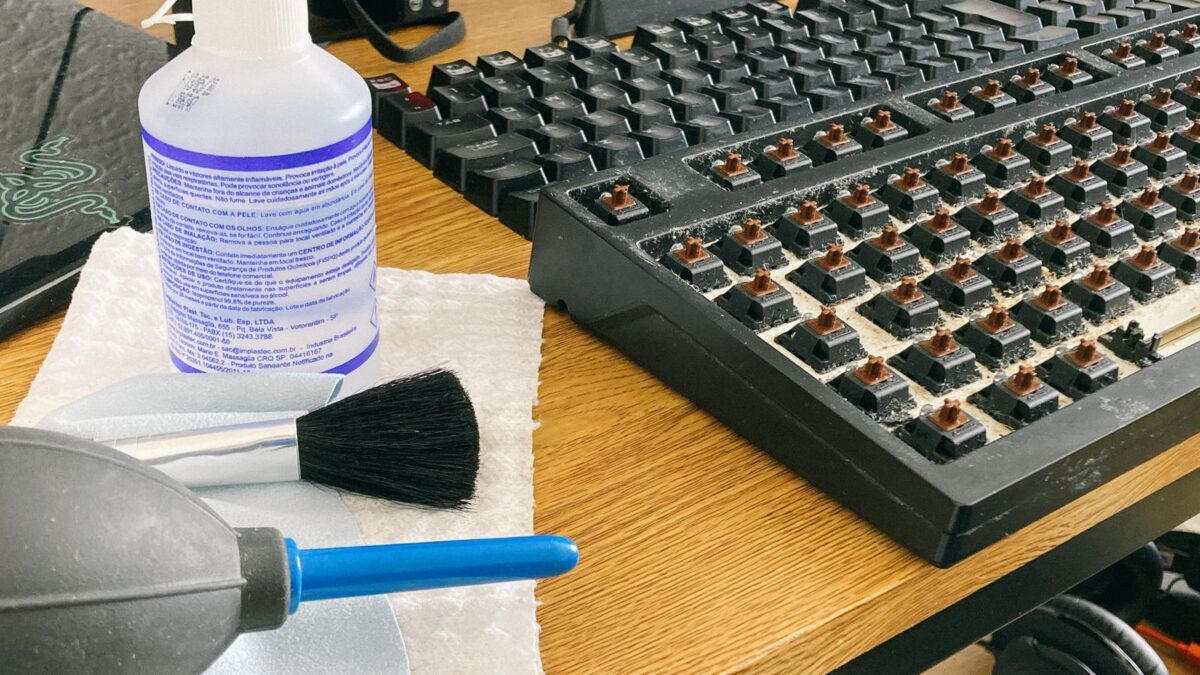
You can handle most routine “tune-up” work a repair shop charges for yourself: clean out dust, install updates, free up storage, trim startup apps, run a malware scan, set up backups, and check temperatures. None of these require opening anything more than a vent cover or a side panel, and together they fix a large share of slow, noisy or overheating computers.
The steps below focus on Windows 11 and Windows 10, with notes for Macs where they differ. One note for Windows 10 users: Windows 10 reached end of support in October 2025, meaning no more regular security updates outside Microsoft’s Extended Security Updates program, so if your PC can run Windows 11, upgrading is the most important maintenance step of all.
The 7 tasks at a glance
| Task | How often | Time needed |
|---|---|---|
| 1. Clean out dust | Every 6–12 months (more with pets or smokers) | 15–30 min |
| 2. Install updates | Monthly (or automatic) | 10–30 min |
| 3. Clean up storage | Every few months | 10 min |
| 4. Trim startup apps | Once, then after new installs | 5 min |
| 5. Scan for malware | When something seems off; full scan occasionally | 15 min to a few hours |
| 6. Set up backups | Once, then check monthly | 20 min |
| 7. Check temperatures and drive health | Every few months | 10 min |
1. Clean out the dust
Dust clogs fans and heatsinks, which makes a computer run hot, loud and slower (processors throttle themselves when they overheat).
- Shut down completely and unplug the power cable. For laptops, also disconnect the charger.
- Take the computer somewhere you do not mind dust flying, ideally outdoors.
- Use short bursts of compressed air on the intake and exhaust vents. Hold the can upright so liquid propellant does not spray out.
- Hold each fan still with a finger or a plastic tool while you blow on it; letting it spin freely at high speed can damage it.
- On a desktop, you can remove the side panel and clean the CPU cooler, graphics card fans and dust filters. Ground yourself by touching the metal case first.
Avoid household vacuums inside the case, since they can build static. If a laptop requires removing the bottom cover and that voids your warranty or looks fiddly, cleaning the vents from outside is still worthwhile.
2. Install system, app and driver updates
Updates patch security holes and fix bugs that cause crashes.
- Windows 11: Settings > Windows Update > Check for updates. Windows 10: Settings > Update & Security > Windows Update.
- Also open Advanced options > Optional updates to see driver updates offered by Windows.
- Update apps from the Microsoft Store via Library > Get updates, and update browsers and other programs through their own menus.
- On a Mac, go to System Settings > General > Software Update.
Leave BIOS/firmware updates alone unless the manufacturer’s support app recommends one or it fixes a problem you actually have; a failed firmware update can be hard to recover from.
3. Free up storage space
A nearly full drive slows updates and can cause errors. Aim to keep at least 10–15% of the drive free.
- Open Settings > System > Storage.
- Click Temporary files, review the categories, and remove what you do not need. Be careful with Downloads; it deletes everything in that folder.
- Open Cleanup recommendations (Windows 11) to find large or unused files and apps you rarely use.
- Turn on Storage Sense on the same page to delete temporary files automatically.
- Uninstall programs you no longer use from Settings > Apps > Installed apps.
On a Mac, use System Settings > General > Storage.
4. Trim startup apps
Many programs set themselves to launch when you sign in, which lengthens startup and eats memory.
- Open Settings > Apps > Startup, or press Ctrl + Shift + Esc to open Task Manager and select Startup apps (called the Startup tab on Windows 10).
- Look at the Startup impact column.
- Turn off apps you do not need immediately, such as chat apps, game launchers and updaters for software you rarely use.
- Leave security software, audio and touchpad drivers, and cloud backup tools enabled.
Disabling a startup entry does not uninstall anything; you can still open the app normally. On a Mac, check System Settings > General > Login Items & Extensions.
5. Scan for malware
Windows includes Microsoft Defender Antivirus, which is enough for most home users when kept up to date.
- Open Windows Security > Virus & threat protection.
- Click Scan options and choose Full scan, then Scan now.
- If you suspect something stubborn, choose Microsoft Defender Offline scan. Save your work first: the PC restarts and scans before Windows loads.
- Review results under Protection history.
Also check your browser for unfamiliar extensions and remove anything you did not install on purpose. Microsoft’s guide is at support.microsoft.com.
6. Set up backups
Repair shops often charge to recover data from a failing drive, sometimes unsuccessfully. A backup makes that a non-event. A good rule is 3-2-1: three copies of important files, on two kinds of storage, with one copy off-site (for example, in the cloud).
- Windows Backup (Windows 11, and recent Windows 10 builds) syncs folders like Desktop, Documents and Pictures to OneDrive. Note that the free OneDrive tier is small.
- File History backs up to an external drive: Control Panel > System and Security > File History, connect a drive, and turn it on.
- On a Mac, connect an external drive and use System Settings > General > Time Machine.
Every few months, try restoring a single file to make sure the backup actually works.
7. Check temperatures and drive health
Task Manager shows a lot without extra software. Press Ctrl + Shift + Esc and open the Performance tab. Recent versions show GPU temperature, and many Windows 11 builds also display the temperature of SSDs.
- Watch CPU usage while idle. If it stays high with nothing open, check the Processes tab for the culprit.
- On Windows 11, check drive health at Settings > System > Storage > Advanced storage settings > Disks & volumes, then select the drive and click Properties. NVMe SSDs show estimated remaining life and temperature. If a drive is failing or full, you can upgrade a laptop SSD yourself.
- If you want CPU temperatures, the PC maker’s own utility or a well-known monitoring tool can show them; download only from the developer’s official site.
Signs of a heat problem include fans roaring under light use, sudden shutdowns, and slowdowns during games or video calls. If cleaning dust does not help, old thermal paste or a failing fan may be the cause, which is a reasonable point to involve a technician.
When to call a professional
- Clicking or grinding noises from a hard drive (stop using it and back up immediately if you can).
- Swollen laptop battery, burning smells, or liquid spills.
- Repeated blue screens after updates and a malware scan.
- Any repair that needs soldering or full disassembly.
Bottom line
Most computer “tune-ups” are tasks you can do in an afternoon: blow out the dust, install updates, clear space, cut down startup apps, run a full or offline Defender scan, set up a backup, and keep an eye on temperatures and drive health. Do them a couple of times a year, and save the repair shop for hardware failures.
FAQ
Do I need a registry cleaner or “PC optimizer” app?
No. Microsoft does not recommend registry cleaners, and many optimizer apps are pushy or bundle unwanted software. The built-in tools above cover what matters.
Should I defragment my SSD?
No manual defrag is needed. Windows’ Optimize Drives tool detects SSDs and runs a TRIM operation instead, on a schedule, automatically.
Is compressed air safe for laptops?
Yes, if the laptop is off and unplugged, you use short bursts, and you keep the fans from spinning freely.
How often should I restart my computer?
Restarting every few days helps updates install and clears memory. Shutting the lid or using sleep does not do the same thing.