Xbox Controller Not Working on PC? How to Fix It (Series X|S, One, 360)
Whether it's a Series X|S, Xbox One or old 360 pad, most PC connection problems come down to cables, firmware, Bluetooth pairing or drivers. Here's the fix order.
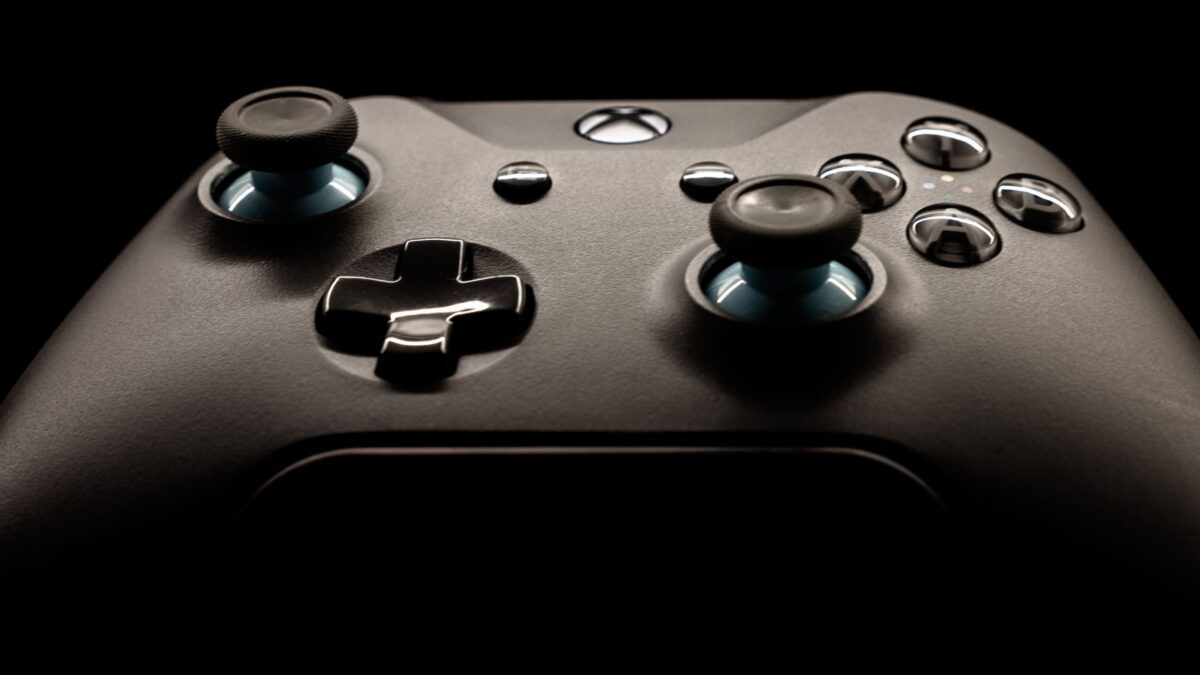
If your Xbox controller isn’t working on a Windows PC, connect it with a USB data cable first, then update its firmware in the Xbox Accessories app, and re-pair it if you use Bluetooth or the Xbox Wireless Adapter. Most problems come from a charge-only cable, outdated firmware, a stale Bluetooth pairing, the wrong connection method for your model, or a game that needs controller support enabled. Xbox 360 controllers need a USB connection or Microsoft’s separate 360 wireless receiver.
Know your controller and how it connects
| Controller | USB cable | Bluetooth | Xbox Wireless Adapter |
|---|---|---|---|
| Xbox Series X|S Wireless Controller | USB-C | Yes | Yes |
| Xbox One controller (later models with Bluetooth) | Micro-USB | Yes | Yes |
| Xbox One controller (original launch model) | Micro-USB | No | Yes |
| Xbox Elite Series 2 | USB-C | Yes | Yes |
| Xbox 360 wired controller | Built-in USB | No | No |
| Xbox 360 wireless controller | Charge cable only (no data) | No | No — needs the Xbox 360 Wireless Receiver for Windows |
Quick Bluetooth check for Xbox One pads: if the plastic around the Xbox button is part of the main face of the controller, it usually has Bluetooth; if that plastic is part of the top section with the bumpers, it’s the original model without Bluetooth.
Quick fixes to try first
- Restart the PC and turn the controller off and on (hold the Xbox button for about 10 seconds to power off).
- Replace or charge the batteries. A blinking or dim Xbox button often means low power.
- Use a different cable. Many USB cables are charge-only. If the controller lights up but Windows doesn’t see it, swap to a known data cable.
- Try another USB port, ideally directly on the PC rather than through a hub.
- Test it outside the game. Search Windows for “Set up USB game controllers” (joy.cpl) and see whether button presses register. If they do, the problem is the game, not the controller.
Update the controller with the Xbox Accessories app
Outdated firmware is a common cause of disconnects, lag and pairing failures, especially over Bluetooth.
- Install Xbox Accessories from the Microsoft Store.
- Connect the controller with a USB cable (firmware updates over Bluetooth aren’t supported for all models).
- Open the app. If an update is available, you’ll see Update required or a button under the controller image.
- Click it and keep the controller connected until it finishes.
If the app doesn’t detect the controller, update the app in the Microsoft Store, restart, and try again. If it still won’t open or detect anything, uninstall it via Settings > Apps > Installed apps and reinstall it.
Fix Bluetooth connection problems
Re-pair the controller
- Go to Settings > Bluetooth & devices, find the controller, click the three dots and choose Remove device.
- Turn the controller on, then press and hold the small pair button on top until the Xbox button flashes quickly.
- On the PC, choose Add device > Bluetooth and select Xbox Wireless Controller.
Other Bluetooth tips
- Update your PC’s Bluetooth driver via Settings > Windows Update > Advanced options > Optional updates or your PC maker’s support site.
- Keep the controller close and avoid USB 3.0 devices or hubs right next to the Bluetooth adapter, which can cause interference.
- If you want to connect several controllers at once, the Xbox Wireless Adapter is usually more reliable than Bluetooth.
- A Bluetooth controller can be paired to one Bluetooth device at a time and remembers one console plus one Bluetooth device — re-pair after using it with a phone or tablet.
Fix Xbox Wireless Adapter problems
- Plug the adapter directly into a USB port (or use the included extension cable for better line of sight).
- Press the button on the adapter until its light blinks.
- Press and hold the pair button on the controller until the Xbox button blinks quickly, then stays lit.
- If Windows doesn’t recognize the adapter, run Windows Update; the driver normally installs automatically.
Microsoft’s own connection steps are on Xbox Support.
Fix driver problems in Device Manager
- Right-click Start and choose Device Manager.
- Expand Xbox Peripherals (or look under Human Interface Devices or Other devices for an unknown device).
- Right-click the controller and choose Update driver > Search automatically for drivers.
- If that fails, choose Uninstall device, unplug the controller, restart, and reconnect it so Windows reinstalls the driver.
Only download drivers from Windows Update or Microsoft — avoid third-party “driver updater” tools.
Xbox 360 controllers
Wired 360 controllers plug straight into USB and use the built-in Windows driver. A wireless 360 controller can’t connect over Bluetooth or the modern Xbox Wireless Adapter, and its play-and-charge cable only charges. You need the Xbox 360 Wireless Receiver for Windows. If the receiver shows as an unknown device, update its driver in Device Manager as above.
If the controller works but not in your game
- Steam: open Steam > Settings > Controller and check whether Steam Input is enabled for Xbox controllers; try toggling it, or change the per-game setting under the game’s Properties > Controller.
- Close other controller-mapping apps (DS4Windows, reWASD, etc.) that may intercept input.
- Check the game’s own settings for a controller or input-device option.
Still not working?
Test the controller on another PC or an Xbox console. If it fails everywhere — buttons stuck, no power with fresh batteries — it may be a hardware fault. Check your warranty through Xbox Support.
Bottom line
Start simple: a real data cable, a direct USB port and fresh batteries. Then update firmware in Xbox Accessories, re-pair over Bluetooth or the Wireless Adapter, and reinstall the driver in Device Manager. Remember the original Xbox One pad has no Bluetooth and wireless 360 controllers need their own receiver.
FAQ
Why does my Xbox controller connect but keep disconnecting?
Usually low batteries, Bluetooth interference, or outdated firmware. Update the controller in Xbox Accessories and move away from USB 3.0 hubs or wireless routers. For general pairing fixes, see Bluetooth not connecting.
Do I need the Xbox Wireless Adapter if my PC has Bluetooth?
Not for most modern controllers. The adapter is useful for the original Xbox One controller, for connecting several controllers, and for features like headset audio through the controller.
Can I use an Xbox controller on PC without Xbox Accessories?
Yes. Windows includes the driver. The app is only needed for firmware updates and remapping.
Why is my controller detected but buttons don’t respond in a game?
The game may not support controllers natively or Steam Input settings may conflict. Test in joy.cpl, then check Steam and the game’s settings.



