How to Recover a Hacked Instagram or Facebook Account (and Lock It Down After)
If someone took over your Instagram or Facebook, the official recovery tools are free and the fastest route back. Here's how to use them, and how to keep it from happening again.
If your Instagram or Facebook account was hacked, go straight to Meta’s official recovery pages: instagram.com/hacked for Instagram and facebook.com/hacked for Facebook. They walk you through confirming your identity, which may include a code sent to your email or phone, or a short video selfie. Recovery is free. Anyone who asks for money to “recover” your account is almost certainly a scammer.
Act quickly: the sooner you start, the more likely your original email or phone number is still linked to the account.
Step 1: Check your email first
When a hacker changes the email, phone number or password on your account, Meta usually sends a notice to the original email address. That message often includes a link to reverse the change or secure your account.
- Search your inbox (and spam folder) for recent messages from Instagram or Facebook about a changed email, password or login.
- Open the message and look for an option such as revert this change or secure your account.
- Follow it to reset your password.
Be careful: scammers also send fake “security” emails. Instead of clicking a link you’re unsure of, you can open Instagram or Facebook directly and check the account’s security emails list (Instagram shows recent official emails in its settings once you’re signed in).
If your email account itself was hacked, recover and secure that first. Otherwise the hacker can simply reset your social media password again.
Step 2: Recover a hacked Instagram account
- On a phone or computer, go to instagram.com/hacked, or tap Forgot password? on the Instagram login screen and choose the option for help when you can’t log in.
- Choose the option that fits, such as My account was hacked.
- Enter the username, email or phone number linked to the account.
- Follow the prompts. Instagram may send a security code to your email or phone, or ask you to confirm your identity another way.
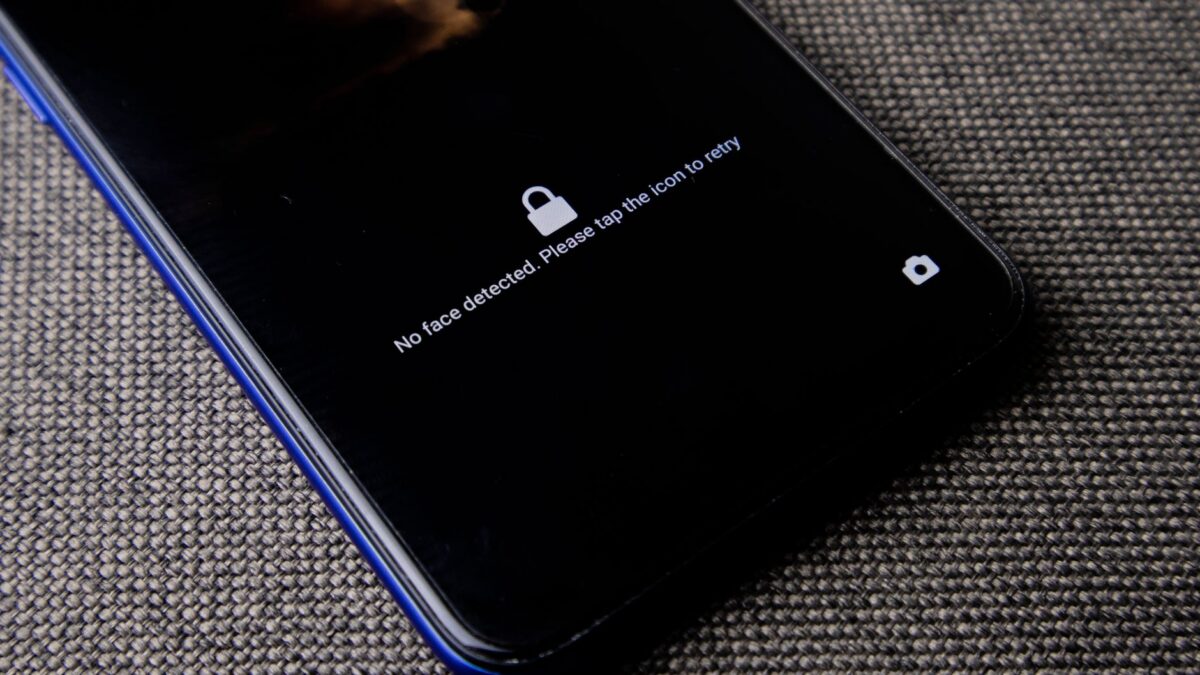
- If asked, record a video selfie turning your head in different directions. Meta says this is used to confirm you’re a real person who matches the account’s photos, isn’t posted on Instagram, and is deleted within 30 days.
While a video selfie is under review, you won’t have access to the account. If it’s approved, Instagram emails a password-reset link to the secure address you provided. Instagram’s own walkthrough is on its hacked account help page.
Step 3: Recover a hacked Facebook account
- Go to facebook.com/hacked on a device you’ve used to log in before, if possible.
- Choose the reason, such as someone getting into your account without permission.
- Find your account using your email, phone number or name.
- Follow the steps to confirm your identity. Depending on the account and region, Facebook may send a code, ask for a video selfie, or ask you to choose friends to help (trusted contacts) or provide ID.
- Set a new, unique password when prompted.
Using a familiar device and network can help, because Meta may recognize it as yours. Meta also runs an Account Recovery Hub on meta.com that links to the right flows for Facebook, Instagram and Threads.
If recovery doesn’t work right away
- Try again from a device you’ve logged in on before.
- Try every email and phone number you may have linked over the years.
- Check whether the hacker deleted or disabled the account. The recovery flow will usually tell you.
- Ask friends to report the account as compromised if the hacker is posting scams from it.
- Be patient with reviews. Video selfie and ID reviews can take time.
Avoid “account recovery” scams
People who’ve been hacked are prime targets for a second scam. Watch for:
- Accounts in comments or DMs claiming they can “hack back” or “recover” accounts for a fee.
- Messages pretending to be Meta support. Instagram says it won’t contact you about account security through Direct Messages.
- Fake “Meta verification” or “copyright violation” emails asking you to log in through a link.
- Requests for your login code. Never share a security code with anyone, including someone who says they’re from Meta.
Recovery through Meta’s official pages is free. Paying a stranger usually means losing money and the account.
Step 4: Lock down the account once you’re back in
Meta now manages passwords, two-factor authentication and login alerts across Facebook, Instagram and Messenger in one place, in Accounts Center > Password and security (part of what Meta calls your Meta Account). From there:
- Change your password to one you don’t use anywhere else. A password manager makes this painless.
- Check Where you’re logged in and log out of any device or location you don’t recognize.
- Review your email addresses and phone numbers on the account and remove anything the hacker added.
- Turn on two-factor authentication, preferably with an authenticator app or security key rather than text messages. See how to set up two-factor authentication.
- Add a passkey if offered. Meta supports passkeys on Facebook, Messenger and Instagram, letting you sign in with your face, fingerprint or device PIN. Our guide to setting up passkeys explains how they work.
- Turn on login alerts so you’re notified of new logins.
- Review connected apps and websites and remove ones you don’t use.
- Check posts, messages, ads and payments the hacker may have created, and warn friends if scam messages went out in your name.
How accounts usually get hacked
| Method | How to prevent it |
|---|---|
| Reused password from another breached site | Unique password for each account |
| Phishing link or fake login page | Log in only through the app or by typing the site address |
| Friend’s hacked account asking for a “code” | Never share login or verification codes |
| SIM swap to steal text-message codes | Use an authenticator app or passkey; add a carrier account PIN |
| Malicious third-party apps | Remove apps you don’t recognize from connected apps |
Bottom line
Use only instagram.com/hacked or facebook.com/hacked, check your original email for a reversal link, and be ready for a video selfie. Once you’re back, change your password, log out unknown sessions, turn on two-factor authentication or a passkey, and ignore anyone offering paid recovery.
FAQ
Can I recover my account if the hacker changed my email and phone?
Often yes. Start at the official recovery page; Meta may verify you with a video selfie or other identity checks instead of the changed contact details.
How long does recovery take?
It can be minutes if you reset through your original email, or longer if a video selfie or ID needs review.
Should I make a new account instead?
Try recovery first. If that fails, a new account is an option, but warn friends that the old one is compromised so they don’t fall for scams sent from it.
Does Meta charge for account recovery?
No. Recovery through Meta’s official pages is free.