How to Set Up Mesh Wi-Fi: Placement, Wired Backhaul and Bridge Mode
A mesh system can fix dead zones for good, but placement and setup make or break it. Here's how to do it right, including what to do with your internet provider's router.
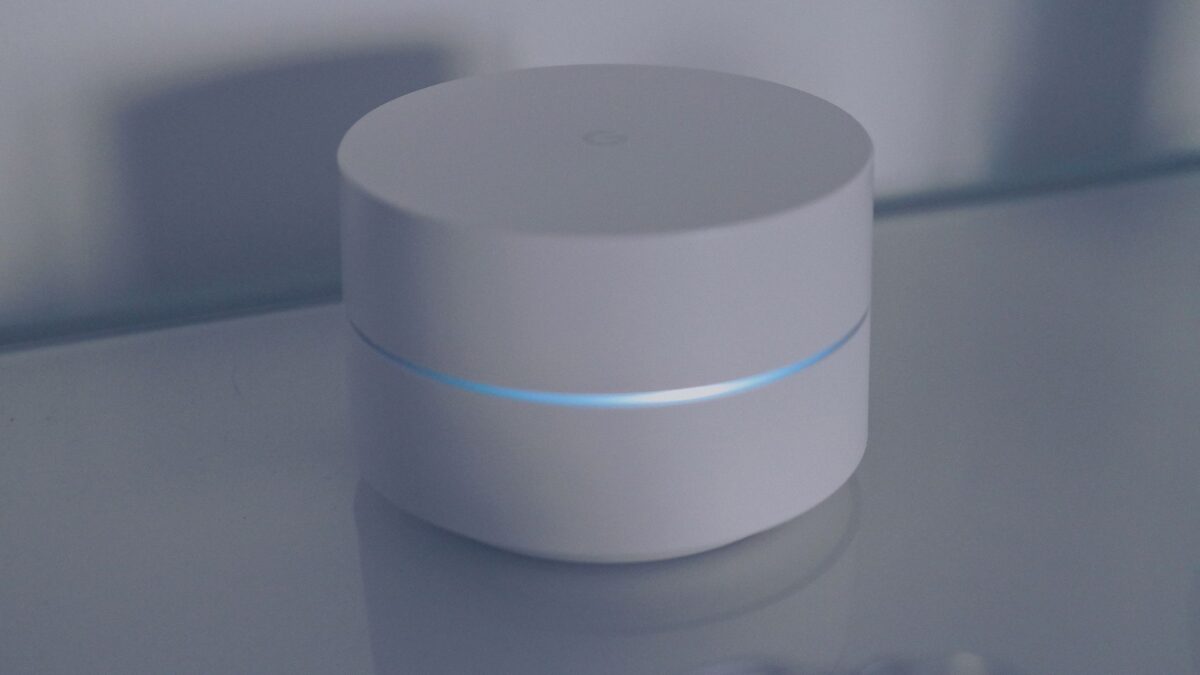
To set up mesh Wi-Fi, connect the main unit to your modem with an Ethernet cable, set it up in the maker’s app, then place each extra node about halfway between the main unit and the dead zone, where it still gets a strong signal. If you can, link the nodes with Ethernet (wired backhaul) for the best speed. If your internet provider gave you a combined modem-router, put either it or the mesh system into bridge mode so you don’t end up with two networks fighting each other.
Mesh vs extender: what’s the difference?
Both add coverage, but they work differently.
| Wi-Fi extender | Mesh system | |
|---|---|---|
| Network name | Often a separate name, or a shared name with less smooth switching | One name; devices move between nodes automatically |
| Speed | Often halves throughput when repeating wirelessly | Better, especially with a dedicated backhaul band or Ethernet |
| Management | Separate settings from your router | One app for the whole system |
| Cost | Cheaper | Higher; usually sold in 2- or 3-packs |
| Best for | One small dead spot | Larger homes, multiple floors, many devices |
If your home is small and the problem is a single room, an extender or moving your router may be enough. For multi-story homes, thick walls or homes over roughly 2,000 square feet, mesh usually works better.
Choosing a mesh system
- Wi-Fi 6: fine for most homes and internet plans up to about 500 Mbps–1 Gbps.
- Wi-Fi 6E: adds the 6 GHz band, which is fast and uncongested but short-range. Tri-band 6E systems can use it as a dedicated link between nodes.
- Wi-Fi 7: adds Multi-Link Operation (MLO) and wider channels, which help mesh backhaul and latency. Worth it if you have multi-gig fiber or many Wi-Fi 7 devices. Our Wi-Fi 7 explainer covers the details.
- Ethernet ports: look for at least one spare port on each node, and 2.5 Gbps or faster ports if your plan is over 1 Gbps.
- Number of nodes: two nodes cover most apartments and smaller houses; three suit larger or multi-floor homes. More nodes isn’t always better if they’re too close together.
Step-by-step mesh setup
- Check your internet speed on a device plugged directly into the modem, so you know what to expect.
- Decide what to do with your ISP equipment (see the bridge mode section below).
- Connect the main node to the modem’s Ethernet port. Power on the modem first, wait until it’s fully online, then power on the node.
- Install the maker’s app on your phone and create or sign in to the account it requires. Follow the prompts to set up the main node, network name (SSID) and password.
- Reuse your old network name and password if you want existing devices to reconnect automatically, but only after the old router’s Wi-Fi is off.
- Add the next node. Start it in the same room as the main node if the app suggests it, then move it to its final position.
- Check the connection quality in the app. Most show a rating such as Good, Fair or Weak for each node. Move any node rated weak closer to the main unit.
- Update firmware and turn on automatic updates.
- Test speed near each node and in your former dead zones.
Where to place mesh nodes
- Halfway, not at the dead zone. A node in the dead zone has a weak link back to the main unit and passes that weakness on.
- Up and in the open. Shelves and tabletops beat floors and closets. Keep nodes away from TVs, aquariums, mirrors and metal cabinets.
- One per floor in multi-story homes, ideally stacked roughly above or below each other, or on the stairs side of the house.
- Centralize the main node if you can. If the modem is at one end of the house, consider running an Ethernet cable to move the main node toward the middle.
- Not too close. Nodes in neighboring rooms overlap heavily and add little.
Wired backhaul: the biggest upgrade
Backhaul is the link between nodes. Wireless backhaul shares airtime with your devices; wired backhaul uses an Ethernet cable between nodes, so the full Wi-Fi capacity goes to your devices and the link is far more stable.
- Use existing Ethernet wall jacks if your home has them, or run a flat cable along baseboards.
- MoCA adapters can carry Ethernet over coaxial TV cabling, a good option in many US homes. Check whether your ISP already uses MoCA so you don’t create conflicts.
- Most systems detect wired backhaul automatically once a node is plugged into the network; some require turning it on in the app.
- Powerline adapters work in some homes but performance varies widely with wiring.
Your ISP router and bridge mode
Many providers supply a gateway that is both a modem and a router. If you plug a mesh system into it without changes, you get double NAT: two routers each managing addresses. It usually works for browsing but can cause problems with gaming, video calls, VPNs and smart home devices.
You have two options:
- Put the ISP gateway in bridge or passthrough mode (sometimes called IP passthrough). Your mesh system then handles routing and Wi-Fi. Log in to the gateway’s admin page or app and look for Bridge Mode; some providers require you to call support or don’t allow it.
- Put the mesh system in bridge or access point mode in its app. The ISP gateway keeps routing, and the mesh only provides Wi-Fi. Turn off the gateway’s own Wi-Fi so devices don’t connect to it instead.
Option 1 gives you the mesh system’s full features, such as parental controls and device management. Option 2 is useful if your provider’s TV or phone service depends on its gateway.
Troubleshooting
- Slow speeds on one node: move it closer to the main unit or add wired backhaul.
- Device stuck on a far node: toggle its Wi-Fi off and on; most mesh apps also let you restart a node.
- Connected but no internet: restart the modem first, then the main node. Our guide to Wi-Fi connected but no internet has more fixes.
- Old smart devices won’t connect: some only work on 2.4 GHz. Many mesh apps have a temporary or compatibility setting for setup.
Bottom line
Mesh Wi-Fi works best when nodes are placed halfway to the problem areas, connected by Ethernet where possible, and not doubled up with your ISP’s router. Choose Wi-Fi 6 for most homes, 6E or 7 for multi-gig plans or many new devices, and keep firmware updated.
FAQ
Can I mix mesh brands?
Generally no. Nodes from different brands don’t form one mesh, and even models within a brand may have compatibility limits. Check the maker’s list.
Does mesh Wi-Fi increase my internet speed?
No. It improves coverage and the speed you get far from the router, but it can’t exceed your internet plan.
How many mesh nodes do I need?
Two for most apartments and smaller homes, three for larger or multi-floor homes. Add more only if the app shows weak areas.
Should I keep my old router?
Not as a second Wi-Fi network. Either use it only as a modem in bridge mode, or retire it and use your mesh system as the router.