Wi-Fi Connected but No Internet? How to Fix It on Any Device
"Connected, no internet" means your device reaches the router but the router can't reach the web, or your device has a bad address. Here's how to tell which and fix it.
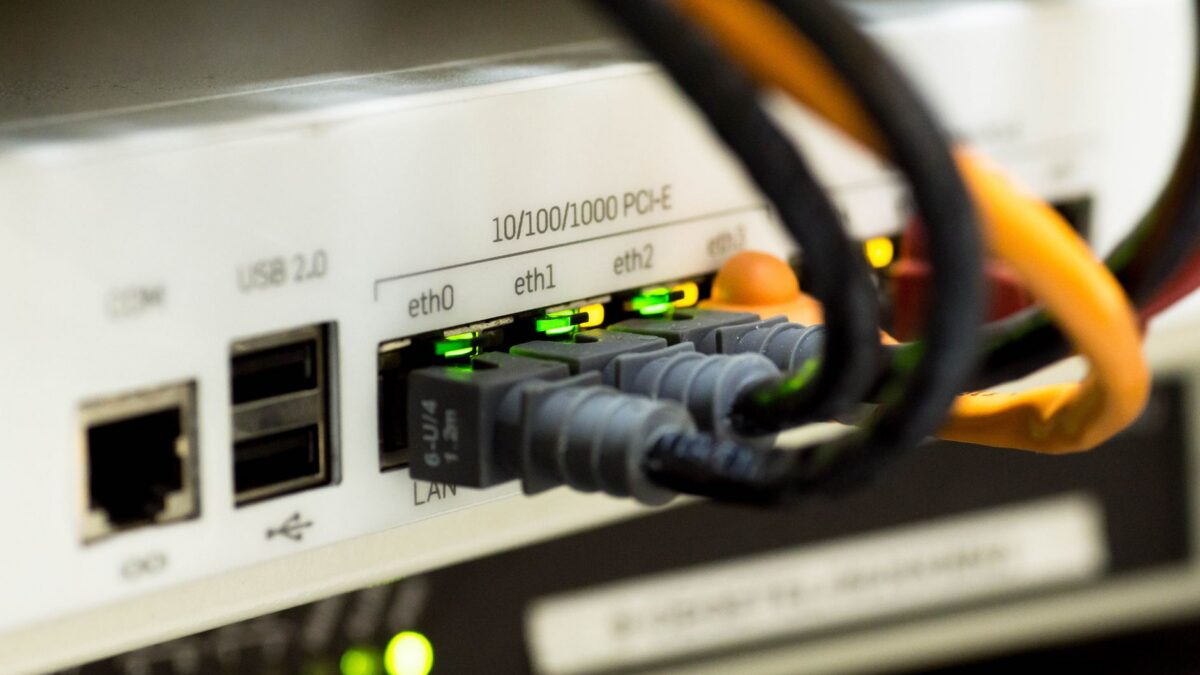
When your device says it’s connected to Wi-Fi but nothing loads, first check whether every device has the problem. If they all do, restart your modem first, then your router, and check your internet provider for an outage. If only one device is affected, forget the network and rejoin it, renew its IP address, and check its DNS and VPN settings.
“Connected” only means your device has a link to the router. It doesn’t mean the router has a working connection to the internet, or that your device received a usable address. The steps below narrow it down.
Step 1: Is it one device or all of them?
| What you see | Likely problem | Go to |
|---|---|---|
| No device in the house can get online | Modem, router or internet provider | Steps 2 and 3 |
| Only one phone or laptop fails | That device’s settings, IP address, DNS or VPN | Steps 4 to 6 |
| Works on cellular but not Wi-Fi | Home network | Steps 2 and 3 |
| Public Wi-Fi shows “connected” but nothing loads | Sign-in page (captive portal) not completed | Step 6 |
Step 2: Restart your modem and router in the right order
If you have a separate modem and router, the order matters, because the router needs to get an address from a modem that’s fully online.
- Unplug the power from the router and the modem (or the single gateway box your provider gave you).
- Wait about 30 seconds.
- Plug in the modem first and wait until its internet or online light is steady, which can take a few minutes.
- Plug in the router and wait for it to finish starting up.
- Reconnect your device and test a website.
If you use a mesh system, restart the main unit connected to the modem first, then the satellites. Our mesh Wi-Fi setup guide covers placement and bridge mode if your setup has two routers fighting each other.
Step 3: Check for an internet provider outage
- Use your provider’s app or website on cellular data; most show outages for your address.
- Look at the modem’s lights. A red, orange or blinking “online” light usually means no signal from the provider.
- If you have a spare Ethernet cable, plug a laptop directly into the modem or router. If it still can’t get online, the problem is upstream of your Wi-Fi.
If there’s no reported outage and a wired connection also fails after restarts, call your provider. Unpaid bills, line faults and account changes all look the same from your end.
Step 4: Fix a single device
Windows 11 and 10
- Turn Wi-Fi off and on, and disconnect any VPN or proxy.
- Forget and rejoin the network: Settings > Network & internet > Wi-Fi > Manage known networks, select the network, choose Forget, then reconnect. You’ll need the password; our guide to finding a saved Wi-Fi password on Windows helps if you’ve forgotten it.
- Renew your IP address and clear the DNS cache. Open Terminal or Command Prompt and run these one at a time:
ipconfig /release,ipconfig /renew,ipconfig /flushdns. - If it still fails, use Settings > Network & internet > Advanced network settings > Network reset. This removes and reinstalls network adapters and resets networking settings, so you’ll need to reconnect to Wi-Fi and reinstall any VPN software afterward. Your PC restarts.
Mac
- Open System Settings > Network, click Wi-Fi, then Details next to your network.
- Click TCP/IP and choose Renew DHCP Lease, then click OK.
- If that doesn’t help, choose Forget This Network in the same Details window and rejoin.
Apple’s Mac User Guide has the steps to renew your IP address; option names may vary slightly between macOS versions.
iPhone and iPad
- Go to Settings > Wi-Fi and tap the info (i) button next to the network.
- Tap Renew Lease.
- If that fails, tap Forget This Network and rejoin.
- Check for a VPN profile or content-filter app under Settings > General > VPN & Device Management.
Android
- Go to Settings > Network & internet > Internet (Samsung: Settings > Connections > Wi-Fi).
- Tap the gear next to the network and choose Forget, then reconnect.
- Check Private DNS (search Settings for it). If it’s set to a specific provider hostname that’s down or blocked, switch it to Automatic and test again.
Step 5: Rule out DNS problems
DNS turns names like a website address into the numeric addresses computers use. If DNS fails, apps that use cached connections may work while websites don’t load, or you’ll see errors such as “DNS server not responding.”
- Flush the cache (Windows command above; restarting a phone or Mac does the same).
- Temporarily switch your device or router to a well-known public DNS service in its network settings, then test. If the internet starts working, your provider’s DNS was the issue.
- Disable custom DNS, ad-blocking DNS or parental-control filters you’ve set up, to see if they’re the cause.
Step 6: VPNs, captive portals and other culprits
- VPNs: A VPN that’s stuck reconnecting can block all traffic. Turn it off or uninstall it to test. If you run a VPN on the router itself, see our VPN router explainer for how that affects every device.
- Captive portals: Hotels, airports and cafes need you to accept terms on a sign-in page. If it doesn’t pop up, open a browser and try a plain http website address to trigger it.
- Date and time: A badly wrong clock breaks secure sites. Set it to update automatically.
- Too many devices or an IP conflict: Restarting the router clears most of these.
- Security software: A firewall or antivirus web filter can block traffic after an update. Don’t leave protection off; if disabling it briefly fixes things, update or reconfigure it.
Bottom line
If every device is offline, restart the modem, then the router, and check for a provider outage. If only one device is affected, forget the network, renew the IP lease, flush DNS and turn off VPNs. A Windows network reset is the last software step; persistent problems with a wired connection point to your provider or modem.
FAQ
Why does my phone say “connected, no internet” only at home?
Your home router or internet service is the likely cause. Restart the modem and router, then check your provider’s outage page on cellular data.
Will resetting my router delete my settings?
Restarting (unplugging) keeps your settings. A factory reset with the pinhole button erases them, including your Wi-Fi name and password, so avoid it unless your provider tells you to.
Is it safe to run ipconfig /release and /renew?
Yes. It simply asks your router for a fresh address. You’ll lose connection for a few seconds while it happens.
Can a Wi-Fi extender cause this problem?
Yes. A poorly connected extender can give you strong Wi-Fi bars with no working internet behind it. Connect directly to the main router to test.



