How to Set Up a New iPhone: Quick Start, eSIM and iCloud Restore
Set up a new iPhone by holding the old one nearby for Quick Start, moving your eSIM, and restoring from iCloud. Then change the first settings below.
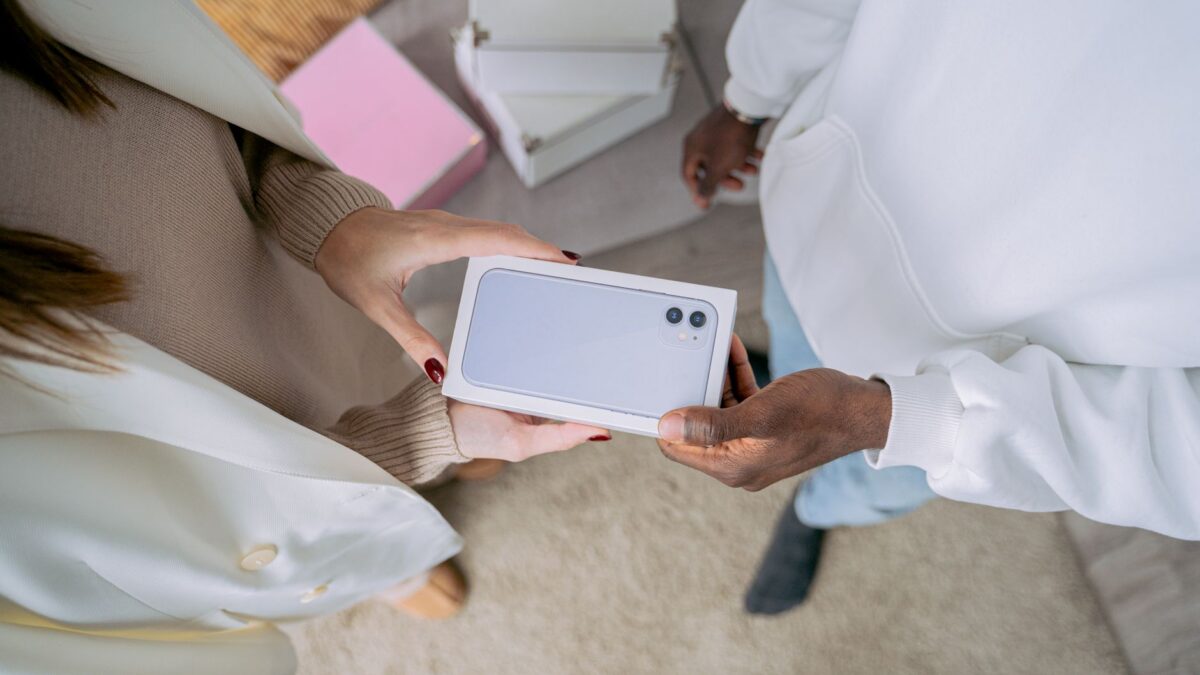
A new iPhone is set up by turning it on near your old iPhone and following the Quick Start prompts, which copy your Apple Account, Wi-Fi details and data to the new phone. A phone number on an eSIM moves over during the same process, and an iCloud backup restores apps and settings if the old phone is not available. Plan on 30 minutes to a few hours for the first setup, since the app and photo downloads continue in the background.
Do three things on the old phone first: update iOS, make a fresh backup, and keep the phone nearby until the new one is finished.
What should you do before you start?
Back up the old iPhone, update it to the latest iOS version it supports and charge both phones. A new backup means nothing recent is lost if the transfer is interrupted.
- Open Settings, tap your name, then iCloud, then iCloud Backup, and choose Back Up Now on Wi-Fi. If your iCloud storage is full, the backup fails, so check storage first. The guide to backing up an iPhone to a Mac or Windows PC is the alternative.
- Know your Apple Account password and old passcode. Both are requested during setup.
- Turn on Wi-Fi and Bluetooth on the old phone.
- Sign out of nothing and do not erase the old phone yet.
If you are switching from Android, the steps are different: see how to transfer data from Android to iPhone.
How does Quick Start work?
Quick Start pairs the old and new iPhone over Bluetooth and Wi-Fi so that you can set up the new phone without retyping everything. It needs both phones running a recent iOS and close together.
- Turn on the new iPhone and choose your language and region.
- Place the old iPhone next to it. A Quick Start card appears on the old phone, so tap Continue and sign in with your Apple Account.
- Point the old phone’s camera at the animation on the new one, or choose manual authentication if the camera fails.
- Enter the old phone’s passcode on the new phone when asked.
- Set up Face ID and create a new passcode.
- Choose how to move your data: transfer directly from the old iPhone, or download from iCloud.
Direct transfer copies data over a wireless or cable connection and is useful when the iCloud backup is large or old. Keep both phones plugged in and next to each other until the progress bar finishes.
How do you move your eSIM or phone number?
A phone line on an eSIM can move from the old iPhone to the new one during setup, using the Transfer from Nearby iPhone option on the Cellular Setup screen. This works when the carrier supports eSIM transfer.
The steps are:
- Follow Quick Start until the Cellular Setup screen appears.
- Choose Transfer from Nearby iPhone, then confirm on the old phone when prompted.
- Wait for the carrier to activate the line on the new phone. The old phone loses service when the new one activates.
If the option is not offered, the carrier usually provides a QR code or a carrier app to activate the eSIM, and customer service can reissue it. iPhone models sold in the US since the iPhone 14 have no physical SIM tray, so an eSIM is the only choice there. Models sold elsewhere may still accept a physical SIM, which you move from the old phone with the ejector tool. Apple lists the current rules on Apple Support.
What if you restore from iCloud instead?
An iCloud restore rebuilds the new iPhone from the latest backup over Wi-Fi. Choose Restore from iCloud Backup on the Transfer Your Apps and Data screen, sign in with your Apple Account and pick the most recent backup in the list.
- Settings and the home screen layout come back first, and apps and photos continue to download afterward.
- Keep the phone on Wi-Fi and plugged in until the downloads finish.
- Some items need re-entry. Payment cards in Apple Wallet usually ask for verification, and some banking and messaging apps ask you to sign in again.
- Anything that syncs through iCloud, such as photos, contacts and passwords stored in iCloud, appears once you are signed in.
This is also the route when the old phone is lost, broken or stolen. If a backup does not appear, check that the right Apple Account is signed in and that backup was turned on for the old phone.
Which settings should you change first?
After setup, check security, battery and notification settings before installing more apps. The full list is in 15 iPhone settings to change first, and these are the ones to look at in the first few minutes:
- Settings, General, Software Update: turn on automatic updates.
- Settings, your name, Find My: make sure Find My iPhone is on.
- Settings, Face ID and Passcode: use a six-digit or longer passcode, and consider Stolen Device Protection if your iOS version offers it.
- Settings, Battery: turn on Battery Percentage and Optimized Charging.
- Settings, Notifications: set Show Previews to When Unlocked if you do not want message text on the lock screen.
- Settings, Privacy and Security: review which apps can see photos, location and contacts.
- Settings, Health: fill in Medical ID for emergencies.
Quick answers
Should I erase my old iPhone right away?
No. Wait until the new phone has finished downloading, your eSIM works and you have checked photos, messages and any two-factor apps. Sign out of your Apple Account, remove the phone from Find My and erase it only then, or trade it in.
Can I set up a new iPhone without the old one?
Yes. Choose Set Up Manually, sign in with your Apple Account and restore from an iCloud backup. Two-factor codes go to a trusted phone number, so keep it accessible.
Why is my new iPhone slow or warm after setup?
The phone is downloading apps, indexing data and restoring photos in the background. This usually settles in a day or two. If it does not, restart the phone and confirm it is on the latest iOS version.
Do I lose my apps and messages?
Apps are redownloaded from your Apple Account. Messages restore from a backup or from Messages in iCloud when it is turned on.