How to Check If an App Is Safe Before You Install It
A few quick checks in the App Store or Google Play can weed out most fake, scammy and data-hungry apps. Here's what to look at, and what to do if you already installed one.
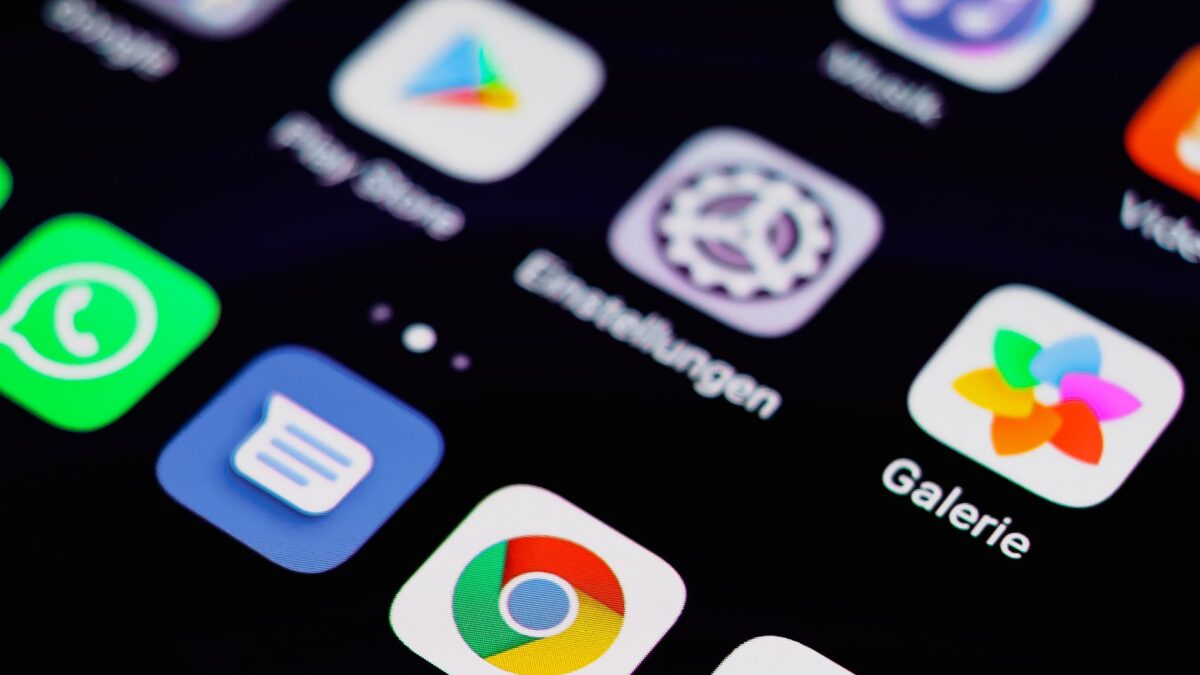
To check if an app is safe, install it only from the official App Store or Google Play, confirm the developer name matches the real company, read recent reviews (especially the low-star ones), and look at the privacy section of the listing to see what data it collects. After installing, deny any permissions that don’t make sense for what the app does.
Official stores scan apps, but fake and low-quality apps still slip through. These checks take a minute and catch most problems.
Step 1: Get it from the official store
The single biggest safety factor is where the app comes from. Apple’s App Store and Google Play review apps and scan for malware. Apps from random websites, links in texts, or social media ads skip those checks.
- Open the store app yourself and search for the app, rather than tapping a download link in a message or ad.
- For banks, airlines and big services, use the link on the company’s official website if you’re unsure which listing is real.
- Be very wary of any message that tells you to install an app to “fix” a problem, “verify” a payment or “claim” a refund. That’s a common scam.
Step 2: Check the developer
Fake apps often copy a real app’s name and icon. The developer name is harder to fake.
- On the app’s page, tap the developer name (below the app name on iPhone, or under the title on Google Play).
- Make sure it matches the real company. A banking app should come from the bank itself, not from a person or an unrelated company.
- Look at the developer’s other apps. A developer with dozens of unrelated, low-quality apps is a warning sign.
- Check that the listing links to a real website and privacy policy.
Step 3: Read reviews the right way
A high star rating isn’t proof of safety, because ratings can be inflated.
- Sort or scroll to recent reviews. An app can change owners or add aggressive ads after a good start.
- Read the one- and two-star reviews. Look for patterns like “charged me without asking,” “full-screen ads,” “won’t let me cancel” or “asked for my login.”
- Watch for generic praise. Many short, vague five-star reviews posted around the same time can be a sign of fake reviews.
- Check the download count on Google Play. A “popular” app with very few downloads deserves a closer look.
Step 4: Read the privacy label
Both stores require developers to describe what data they collect. The developer supplies this information, so treat it as a guide, not a guarantee.
| Store | Where to find it | What it shows |
|---|---|---|
| App Store (iPhone, iPad) | Scroll down the app page to App Privacy | Data used to track you, data linked to you, data not linked to you |
| Google Play (Android) | Tap Data safety on the app page | Data collected, data shared with third parties, whether data is encrypted in transit and whether you can request deletion |
Ask whether the data matches the job. A flashlight or calculator app that collects your location, contacts and browsing history is a red flag.
Step 5: Control permissions after installing
Grant permissions only when the app needs them for a feature you use, and choose the narrowest option.
On iPhone
- Go to Settings > Privacy & Security.
- Tap a category, such as Location Services, Contacts, Photos, Microphone or Camera, to see which apps have access and turn off what’s not needed.
- For location, prefer While Using the App over Always, and turn off Precise Location where an approximate location will do.
- For photos and contacts, recent iOS versions let you share only selected items instead of everything.
- Turn on the App Privacy Report at the bottom of Privacy & Security to see how often apps use permissions and which domains they contact.
On Android
- Go to Settings > Security & privacy > Privacy > Permission manager (on some phones, Settings > Privacy).
- Tap a permission type to see which apps have it, and change any that look wrong.
- For a single app, go to Settings > Apps, choose the app, then Permissions.
- Check the Privacy dashboard to see when apps used location, camera or microphone recently.
Be especially careful with Accessibility access on Android and with apps asking to become a device administrator or to install a configuration profile on iPhone. These give deep control and are commonly abused by malware and scammers.
Use Google Play Protect on Android
Google Play Protect scans apps on your phone, including ones from outside Google Play, and can warn about or disable harmful apps.
- Open the Google Play Store app.
- Tap your profile icon, then Play Protect.
- Tap Scan to check installed apps, and open the settings gear to make sure scanning is turned on.
Google’s Play Protect help page explains what it checks. iPhones don’t need a separate scanner for App Store apps, because iOS restricts what apps can do; keeping iOS updated is the main protection.
Sideloading: know the risks
Sideloading means installing apps from outside the official store, for example an APK file on Android or, in the European Union, an alternative app marketplace on iPhone.
- Sideloaded apps skip the store’s review, so malware is far more common there.
- “Free” or “modded” versions of paid apps and games are a classic way to spread malware, and downloading pirated software is illegal. Buy or use the official version instead.
- On Android, you have to allow “Install unknown apps” for a specific app, such as a browser. If you turn it on for a one-time install, turn it back off afterward.
- Google is rolling out developer verification for Android apps installed on certified devices, including apps from outside Google Play. It began in a few countries in late 2026, with a wider rollout planned for 2027. Installing apps from unverified developers will require extra steps.
If someone on the phone or in a chat asks you to install an app or APK, stop. It’s one of the most common ways scammers take over phones and bank accounts.
What to do if you installed a bad app
- Uninstall it. On Android, if you can’t, check Device admin apps in Settings (search for “device admin”) and remove its admin rights first.
- Run Play Protect on Android.
- Change passwords for any account you signed in to through the app, and turn on two-factor authentication.
- Check subscriptions in the App Store or Google Play for charges you didn’t intend.
- Watch your bank statements if you entered payment details.
- If problems continue, see how to tell if your phone is hacked, and as a last resort, factory reset your Android phone after backing up.
Bottom line
Download apps only from the official stores, confirm the developer is the real company, read recent low-star reviews and check the privacy label before you install. Afterward, give each app only the permissions it really needs. Treat any request to install an app from a link, text or caller as a likely scam.
FAQ
Are all apps in the App Store and Google Play safe?
Not all. The stores catch most malware, but fake, misleading and data-hungry apps still appear. The developer, review and permission checks above help you spot them.
Is it safe to sideload apps on Android?
It’s riskier. Stick to well-known sources, avoid modded or pirated apps, keep Play Protect on, and turn “Install unknown apps” back off afterward.
Do I need antivirus on my phone?
Most people don’t. Built-in protections like Play Protect and iOS security, plus regular updates and careful downloading, cover the main risks. Be wary of “cleaner” or “booster” apps that claim otherwise.
How can I tell if an app is fake?
Check the developer name, the download count, the review history and whether the company’s official website links to the listing. Spelling mistakes and copycat icons are common signs of a fake.



