Best Wallpaper Apps for Android (and the Built-In Options to Try First)
Your phone's own wallpaper picker may be all you need. If not, these trusted apps and safety tips will help you choose.
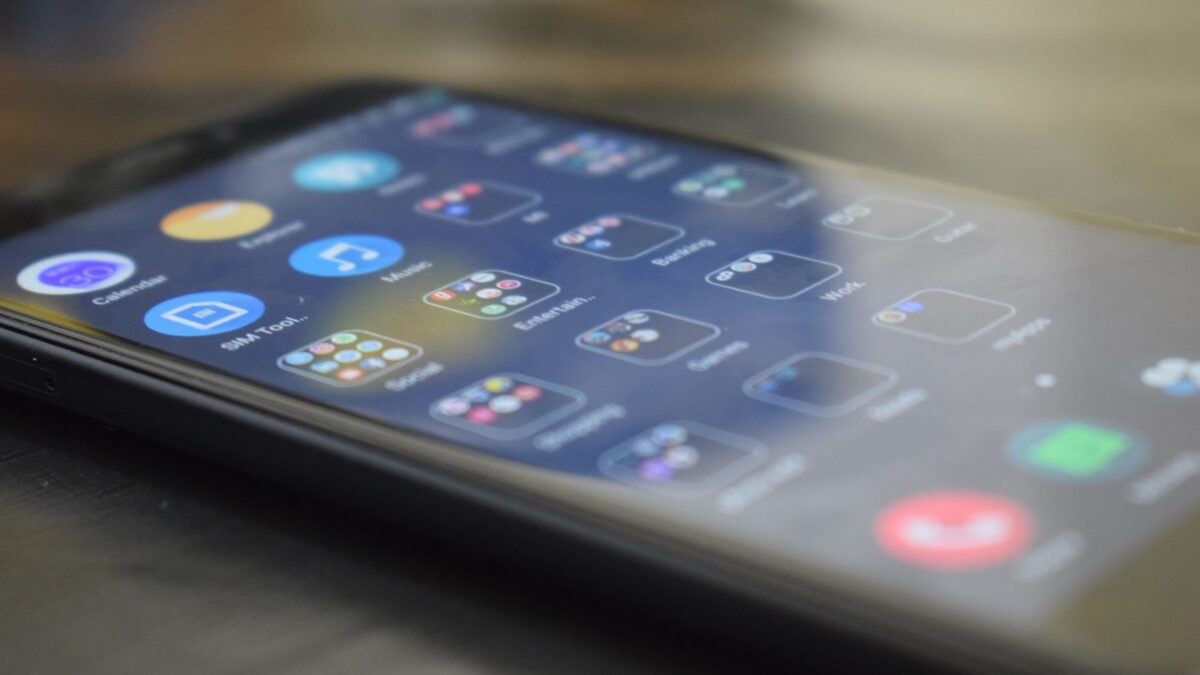
Before installing anything, check the wallpaper picker already on your phone: Pixel and Samsung Galaxy phones include large built-in collections, live wallpapers and even AI-generated options. If you want more, stick to well-known apps with clear privacy disclosures, such as Google’s own Wallpapers app or the open-source Muzei, and avoid apps that ask for unnecessary permissions or bury the screen in ads.
Start with the built-in options
Modern Android phones ship with better wallpaper tools than many third-party apps, and they come with no extra ads or data collection.
Google Pixel
Pixel phones use the Wallpaper & style menu. It offers curated photo categories, artwork, live and “cinematic” wallpapers made from your own photos, and on recent models an AI wallpaper generator that builds images from a prompt you edit. Your wallpaper colors can also drive the system color theme (Material You). Google documents the AI option on its Pixel Help page.
Samsung Galaxy
Galaxy phones use Settings > Wallpaper and style. You can pick separate images for the Home and Lock screens, choose from Samsung’s gallery and color wallpapers, and set a lock screen slideshow from your own photos. For more designs, the Galaxy Themes app (from the Galaxy Store) offers free and paid wallpapers, icons and full themes. Recent One UI versions also add dynamic color wallpapers that shift through the day.
Other brands
Motorola, OnePlus, Xiaomi and others have their own wallpaper or theme stores. Look for a “Wallpaper,” “Personalization” or “Themes” entry in Settings, or long-press an empty part of the home screen.
Reputable wallpaper apps worth a look
If the built-in choices are not enough, these apps are long-established on Google Play. Features and ads can change, so check the listing before installing.
| App | What it does well | Things to know |
|---|---|---|
| Wallpapers (by Google) | Curated photos and art, daily auto-rotating wallpaper | Preinstalled on Pixel; on Google Play for some other phones (compatibility varies) |
| Muzei Live Wallpaper | Rotates famous artworks or your own photos, blurs/dims to keep icons readable | Open source; extensions add more sources |
| Galaxy Themes (Samsung only) | Official wallpapers and themes that match One UI | Mix of free and paid content |
| Community wallpaper apps (e.g. Backdrops, Walli) | Large catalogs from designers and artists | Usually ad-supported with paid upgrades; review permissions |
You can also use your own photos or high-quality images that are free to use from sources like public-domain art collections or photographers who release work under permissive licenses. Avoid apps or sites that offer copyrighted movie stills, sports logos or celebrity photos without permission.
Privacy and ad warnings
Wallpaper apps are a popular category for ad-heavy and low-quality apps. Before you install one:
- Read the Data safety section on the Google Play listing. A wallpaper app should not need your contacts, call logs, SMS or precise location.
- Watch for full-screen ads that appear outside the app or on the lock screen. That behavior is a red flag; uninstall the app.
- Be careful with “live wallpaper” apps from unknown developers. They run in the background and can drain battery.
- Do not sideload APKs from random sites promising “premium” wallpapers for free. They are a common route for malware.
- Keep Google Play Protect on (Play Store > profile icon > Play Protect).
How to set a wallpaper on Android
On a Google Pixel
- Touch and hold an empty spot on the home screen.
- Tap Wallpaper & style.
- Tap More wallpapers (or the wallpaper preview) and choose a category, your photos, or AI wallpaper.
- Pick an image, then tap Set wallpaper (or the check mark).
- Choose Home screen, Lock screen, or both.
On a Samsung Galaxy
- Open Settings > Wallpaper and style (or long-press the home screen and tap Wallpaper and style).
- Tap Change wallpapers.
- Choose a source: Gallery, Colors, Samsung’s built-in wallpapers, or Galaxy Themes.
- Select the image, adjust the crop, and choose whether to apply it to the Lock screen, Home screen or both.
- Tap Done.
From a wallpaper app or your gallery
- Open the image in the app or in Google Photos.
- Tap the three-dot menu and choose Use as or Set as wallpaper.
- Crop the image and pick Home, Lock or both.
Menu names can vary slightly by Android version and phone model.
Tips for a wallpaper that looks good
- Use images at least as large as your screen resolution so they stay sharp.
- Choose calmer images for the home screen so icons and widgets stay readable; save busy photos for the lock screen.
- Dark wallpapers can save a little battery on phones with OLED screens.
Bottom line
For most people, the built-in Pixel or Samsung wallpaper menu is the best place to start: it is free, ad-free and increasingly powerful. If you want more variety, pick an established app like Google’s Wallpapers or Muzei, check its Data safety section, and skip anything that demands odd permissions or pushes ads onto your lock screen.
FAQ
Are wallpaper apps safe?
Well-known apps from established developers on Google Play are generally safe. Risk rises with unknown developers, excessive permissions and APKs downloaded outside the Play Store. For a fuller checklist, see how to check if an app is safe.
Do live wallpapers drain the battery?
They can use more power than a static image, especially animated ones. If battery life matters, choose a static or dark wallpaper.
Can I use different wallpapers on the home and lock screens?
Yes. Both Pixel and Samsung phones let you choose Home screen, Lock screen or both when you apply a wallpaper.
Can I make my own AI wallpaper?
Recent Pixel phones include an AI wallpaper generator in Wallpaper & style. Some other phones and apps offer similar features; availability depends on model and region.