Best Free Video Editing Software for Beginners: 7 Picks and Their Limits
The best free video editors for beginners are iMovie, Clipchamp, DaVinci Resolve and Shotcut. See what each free version leaves out on Windows and Mac.
The best free video editing software for beginners is iMovie on Mac and Clipchamp on Windows for simple projects, DaVinci Resolve on both systems for anyone who wants room to grow, and Shotcut or Kdenlive if you want an editor that is fully free with no paid tier at all. Free versions usually hold back higher export resolutions, stock media, premium effects, cloud storage and some performance features, but every pick below can export a clean, watermark-free video good enough for YouTube, school or family projects.
Which free video editor should a beginner choose?
A beginner should start with whatever is already on the computer, then move to DaVinci Resolve or an open-source editor once the basics feel limiting. Here is how the main options compare:
- iMovie (Mac, also iPhone and iPad): preinstalled or free from the App Store. Drag-and-drop timeline, titles, transitions, green screen, simple color and audio tools, and trailer templates. The easiest place to start on a Mac.
- Clipchamp (Windows): Microsoft’s editor, included with Windows 11 and available on Windows 10. Browser-style interface, templates, text, captions and screen recording. Very approachable for social clips and short projects.
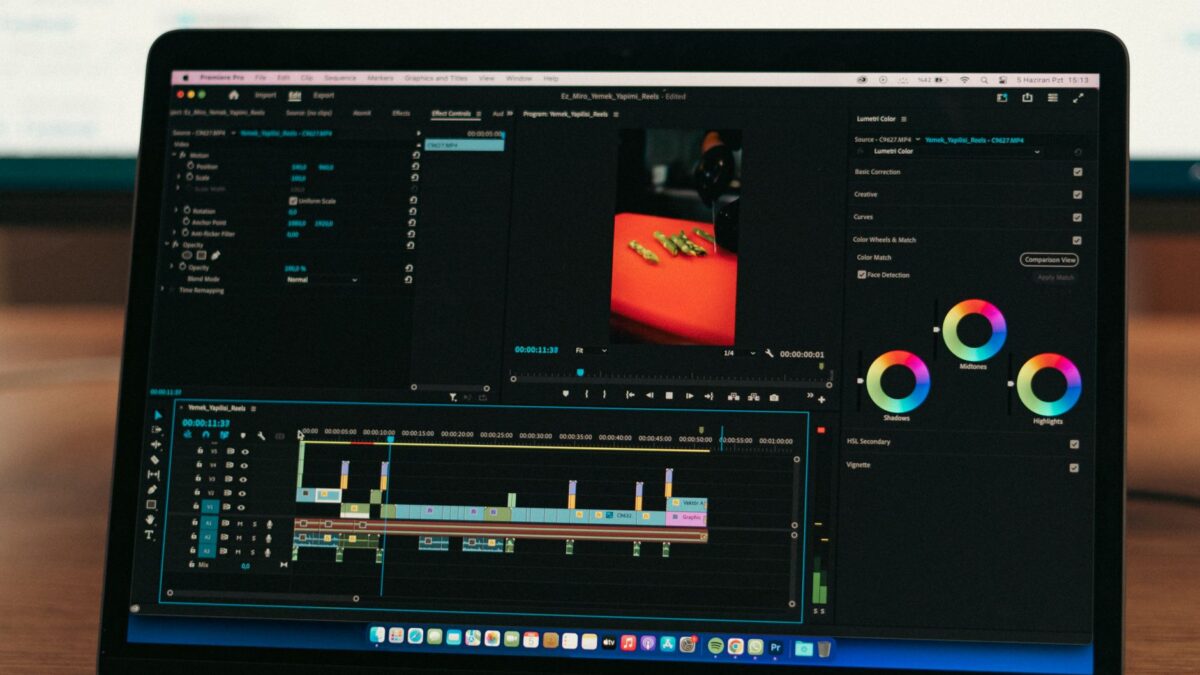
- DaVinci Resolve (Windows and Mac): a professional editor with a generous free version. Editing, color grading, audio mixing and effects in one program. Steeper learning curve and heavier hardware demands.
- Shotcut (Windows and Mac): open source, completely free, supports a wide range of formats. Interface feels plain at first but it is capable.
- Kdenlive (Windows and Mac): open source multi-track editor with effects, titles and proxy editing for smoother playback.
- OpenShot (Windows and Mac): open source and simple, good for basic cuts and titles, though it can feel slower on long projects.
- CapCut (Windows and Mac): popular for short vertical videos with trendy effects and auto captions, but many tools and assets are marked as paid, and it requires an account.
If you are still deciding which computer to buy for editing, the trade-offs in our guide to choosing between a Mac and a Windows laptop apply here too: editing rewards more memory and a stronger graphics chip.
What do free versions of video editors usually leave out?
Free versions usually leave out higher-end export options, premium content and convenience features rather than basic editing. The common gaps are:
- Export resolution and quality: some freemium editors cap exports at 1080p and reserve 4K for paying users.
- Watermarks: a few freemium tools stamp a logo on exports or on specific premium effects. iMovie, DaVinci Resolve, Shotcut, Kdenlive and OpenShot do not add watermarks.
- Stock media and templates: music, video clips, stickers and fancy title packs are often split into free and premium libraries.
- AI features: automatic background removal, voice enhancement, text-to-speech voices and smart reframing are frequently paid or usage-limited.
- Cloud storage and syncing: backing up projects online or moving them between devices is often a subscription perk.
- Performance: paid versions of pro editors may add more hardware acceleration, which means faster playback and exports on high-resolution footage.
- Brand kits and collaboration: saved logos, fonts, colors and shared team projects are mostly paid features.
For most beginners, the only gap that matters is export resolution, and that only if you film in 4K and want to keep it.
What does the free version of DaVinci Resolve leave out?
The free version of DaVinci Resolve leaves out some advanced effects, extra hardware acceleration, higher-than-4K output and collaboration tools that come with the paid Studio version. Editing, color correction, audio work in the Fairlight page and visual effects in the Fusion page are all included for free, and exports have no watermark. Some effects and AI-assisted tools show a watermark in the preview if you try them in the free version, so check that before relying on one. The bigger hurdle is hardware: Resolve leans heavily on the graphics chip and memory, and older or low-end laptops can stutter or refuse to run it.
Is iMovie or Clipchamp enough for most people?
iMovie and Clipchamp are enough for most everyday projects such as family videos, school assignments, simple YouTube uploads and social media clips. They handle trimming, splitting, titles, transitions, music, voiceover and basic color adjustment. You will outgrow them when you need precise audio mixing, many video layers, detailed color grading or keyframed motion. iMovie is completely free with no paid tier. Clipchamp has a free plan plus a premium subscription that unlocks extra stock content and features, so watch for items marked as premium before you build a project around them.
Are open-source editors like Shotcut and Kdenlive safe and really free?
Shotcut, Kdenlive and OpenShot are safe and genuinely free when downloaded from their official websites, with no watermarks, subscriptions or locked features. They are built by volunteer communities and funded by donations. The trade-offs are less polished design, fewer built-in templates and stock assets, and occasional bugs or crashes on complex projects, so save often. Avoid download mirrors and bundled installers on third-party sites, which sometimes add unwanted software.
How do you get started editing your first video?
Start with a short project of one to three minutes and a simple, repeatable workflow:
- Gather footage in one folder. Copy clips from your phone or camera to the computer first. If your clips live on an iPhone, a full iPhone backup to a Mac or PC is a good safety net before you start deleting anything from the phone.
- Create a project and import the folder. Keep the original files where they are; most editors only link to them.
- Do a rough cut. Drag clips onto the timeline in order and trim the start and end of each.
- Add music and voiceover. Lower the music under speech so voices stay clear.
- Add titles and a few simple transitions. Plain cuts look more professional than heavy effects.
- Adjust color and audio levels. Fix clips that are too dark or too loud.
- Export with a standard preset. A 1080p H.264 (MP4) preset works for nearly every website and device.
For tutorials or software demos, you can capture your screen first with the built-in screen recording tools and then edit that recording like any other clip.
What common mistakes do beginners make with free editors?
The most common beginner mistake is picking a tool that is too advanced or too heavy for the computer. Other frequent problems:
- Moving or renaming source files after importing, which leaves the project with missing media.
- Running out of disk space. Video files, caches and exports fill drives quickly; keep plenty of free space.
- Editing 4K footage on a weak laptop without using proxy or optimized media, which makes playback choppy.
- Using music without permission. Popular songs can get videos muted or blocked; use the editor’s licensed library or royalty-free music.
- Not checking the export on another device before sharing it.
Quick answers
Is there a free video editor with no watermark?
Yes. iMovie, DaVinci Resolve, Shotcut, Kdenlive and OpenShot all export without a watermark. Freemium editors may add one only when you use premium effects or assets.
What is the easiest free video editor on Windows?
Clipchamp is the easiest starting point on Windows because it is included with Windows 11 and uses a simple drag-and-drop layout with templates.
Can a free editor export 4K video?
Several can. DaVinci Resolve, Shotcut, Kdenlive and iMovie support 4K export, while some freemium tools reserve 4K for paid plans.
Do I need a powerful computer for free video editing?
Not for simple 1080p projects in iMovie, Clipchamp or Shotcut. DaVinci Resolve and 4K footage need more memory and a capable graphics chip to run smoothly.