How to Choose a Gaming Monitor: Resolution, Refresh Rate, Panel
A gaming monitor should match your graphics card and games: 1440p at 144Hz or higher suits most PCs. Panel type, response time, HDR and ports explained.
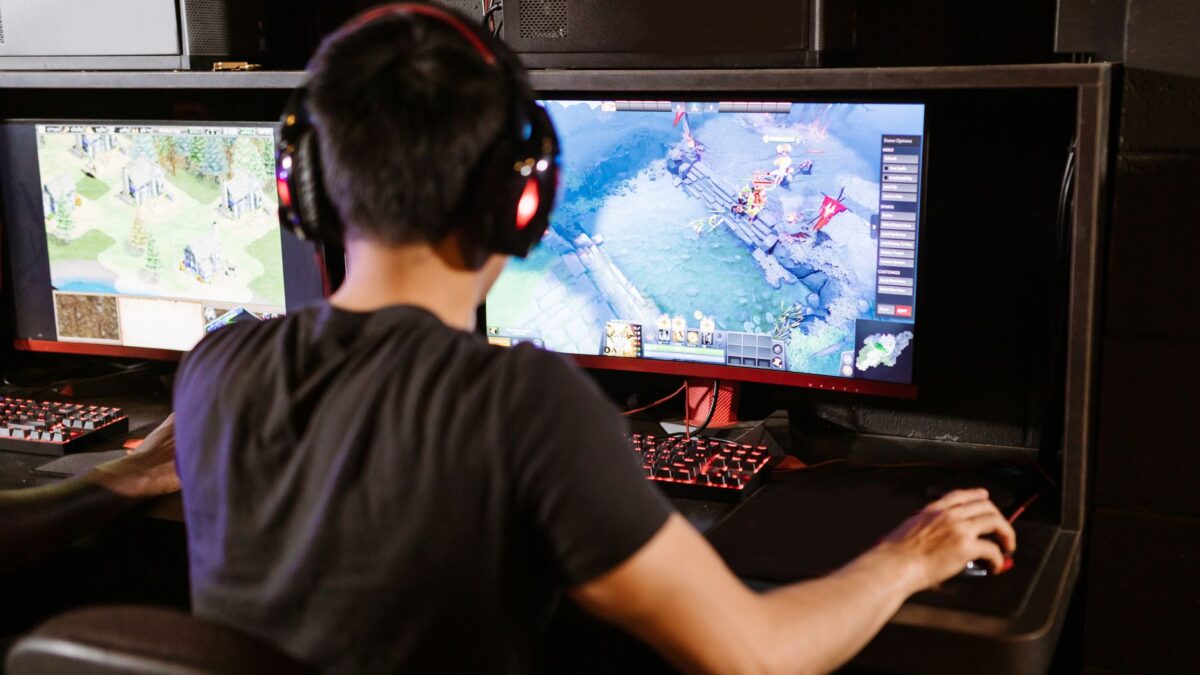
The right gaming monitor matches what your PC or console can actually render. For most current PCs, a 1440p (2560 x 1440) screen with a refresh rate of 144Hz or more is a sound balance of sharpness and smoothness, while 1080p suits modest graphics cards and 4K suits powerful ones. Panel type, response time, HDR and ports decide the rest.
Which resolution should you pick?
Pick the resolution your graphics card can drive at a frame rate you like. Higher resolution makes text and detail sharper but needs more processing power.
- 1080p (1920 x 1080): easiest to run, works well at 24 to 27 inches, and lets a mid-range card reach high frame rates.
- 1440p: sharper at 27 inches and a common choice for gaming PCs.
- 4K (3840 x 2160): very sharp, but demanding. It makes most sense for strong graphics cards, large screens and consoles that target 4K.
A monitor shows lower-resolution images blurrier than its native resolution, so buying a 4K screen for a weak card often means playing at less than native sharpness.
How much refresh rate do you need?
Refresh rate is how many times per second the screen redraws, measured in hertz (Hz). A standard 60Hz screen shows up to 60 frames per second. 120Hz, 144Hz and higher panels look smoother in motion, which helps in fast shooters and racing games.
A monitor only helps if your system produces frames fast enough. If a game runs at 60 frames per second, a 240Hz monitor shows no more than that. Variable refresh rate (VRR) technologies, called G-Sync, FreeSync or Adaptive-Sync depending on the vendor, let the screen follow the frame rate and reduce tearing and stutter. Check that your graphics card supports the version the monitor uses.
Does response time matter?
Response time is how quickly a pixel changes color, and slower pixels leave smeared trails behind moving objects. Makers usually quote the best-case gray-to-gray figure in milliseconds, and the lowest numbers often apply only in a special fast mode that can add artifacts. Treat one number on a box as a rough guide, and look at independent reviews that measure it in the normal mode. For most players, a modern IPS or OLED screen is fast enough.
Which panel type is best: IPS, VA, TN or OLED?
Each panel type trades something away.
- IPS: accurate colors and wide viewing angles, usually only average contrast. A good all-round choice.
- VA: deeper blacks and higher contrast, with some models showing slower dark transitions.
- TN: historically the fastest and cheapest, but colors and viewing angles are weaker. Now less common.
- OLED: each pixel lights itself, giving near-perfect black, fast response and strong contrast. Some buyers worry about burn-in from static images, so check the maker’s warranty and care advice.
Is HDR worth paying for?
HDR (high dynamic range) lets a screen show brighter highlights and darker shadows, but the label alone says little. Entry-level HDR badges, such as those in the lower tiers, often mean modest brightness and no local dimming, so the picture can look little different from standard mode. Better results come from screens with strong peak brightness and many dimming zones, or from OLED panels. If HDR matters to you, read measured reviews instead of relying on the badge.
Which ports does your PC or console need?
Match the monitor’s inputs to your device, because the wrong port can cap resolution or refresh rate.
- DisplayPort: the usual choice for a gaming PC at high refresh rates. Use the cable that came with the monitor.
- HDMI 2.1: needed for 4K at 120Hz from current consoles. Older HDMI versions limit that combination.
- HDMI 2.0: fine for 1080p or 1440p at high refresh rates on many models, and for 4K at 60Hz.
- USB-C with DisplayPort: handy for laptops, and some monitors also charge the laptop.
Look for an HDMI 2.1 port if you own a recent console. Console prices keep changing, as the report on the Xbox Series X price rise before the holidays shows, so a monitor that also serves a PC can be a safer purchase than a console-only screen. If you mostly play on a living-room screen, the guide to choosing between Roku, Fire TV, Google TV and Apple TV covers the TV side.
Which size and shape suit your desk?
Size depends on how far you sit. A 24 to 27-inch screen suits a typical desk, while larger and curved ultrawide screens fill more of your view and need more depth. A larger screen at a low resolution looks soft, which is why 27 inches pairs well with 1440p.
Quick answers
Is 144Hz enough?
Yes, for most players. 144Hz is a clear step up from 60Hz, and gains beyond it matter mostly in competitive shooters and need a PC that produces very high frame rates.
Do I need G-Sync or FreeSync?
Not strictly, but variable refresh rate reduces tearing and makes uneven frame rates look smoother. Choose the type your graphics card supports.
Can I use a gaming monitor for work?
Yes. Sharper resolution and an IPS panel make text and color work easier, and the high refresh rate makes scrolling smoother as well.
Is a curved monitor better?
A curve can feel more immersive on large and ultrawide screens, but it is a matter of taste and does not change speed or image quality.