AirPods Not Connecting or One AirPod Not Working? Step-by-Step Fixes
Fix AirPods that will not connect or play sound in one ear. Simple checks and resets for iPhone, Mac and Android, from charging to cleaning and re-pairing.
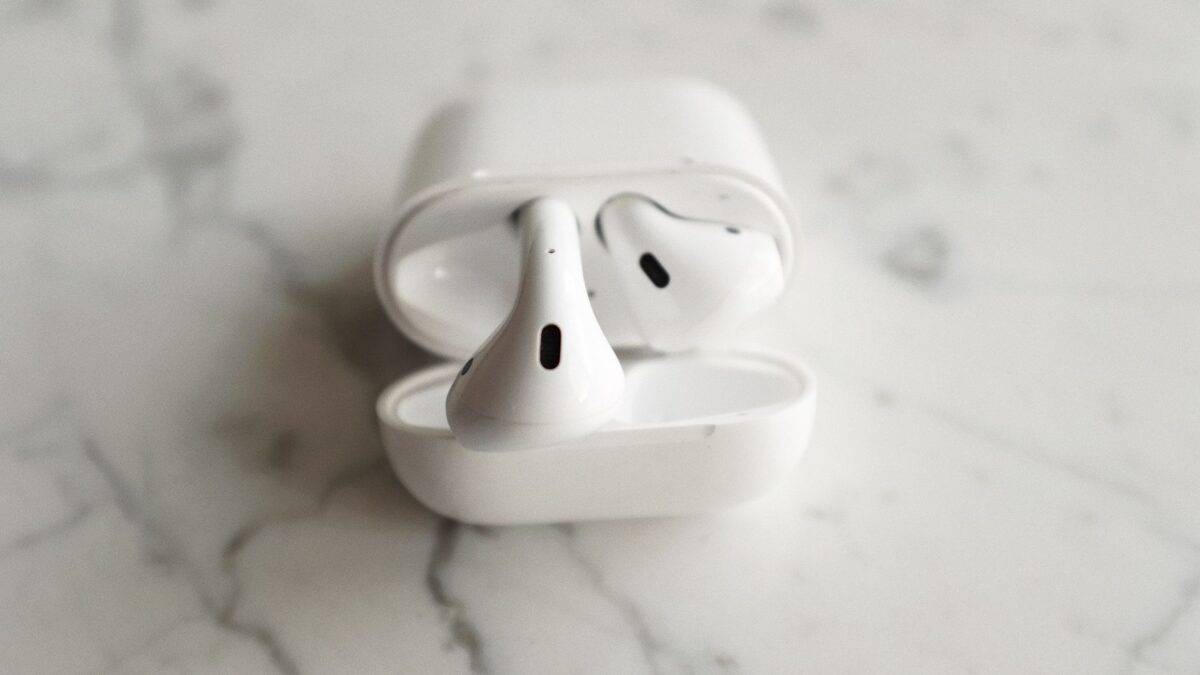
If your AirPods will not connect, or only one earbud plays sound, the cause is usually a low battery, a dirty speaker mesh, a software glitch or a settings change, and most of these can be fixed in a few minutes. Work through the steps below in order, starting with the simplest, and stop as soon as the problem is gone.
Start with the quick checks
- Charge both earbuds and the case. Put the earbuds in the case, close the lid and charge the case for at least 15 to 30 minutes. A dead earbud is the most common reason only one side works.
- Check Bluetooth is on. Turn Bluetooth off and on again on your phone or computer. Also check that Airplane Mode is off.
- Put the AirPods back in the case. Wait about 30 seconds, then open the lid near your device and try again.
- Restart your phone, tablet or computer. This clears many temporary Bluetooth faults.
- Make sure they are not connected elsewhere. AirPods may be paired with another device nearby, such as a tablet or laptop, and can connect to it instead.
Fix one AirPod not working
When one earbud is silent, first confirm that it is not just quiet. On iPhone, open Settings, then Accessibility, then Audio & Visual, and check that the balance slider sits in the middle. Also make sure Mono Audio is set the way you want, because it can change how sound is sent to each ear.
Next, clean the earbuds. Earwax and dust block the speaker mesh and the small charging contacts. Use a dry, soft, lint-free cloth or a clean, dry, soft-bristled brush. Do not use sharp objects, liquids or compressed air, and do not push anything into the openings. Wipe the metal charging contacts in the case as well, since poor contact stops an earbud from charging.
If one side still has no sound, put both earbuds in the case, charge them, then take them out and test each one alone. If only the same earbud fails, it may have a hardware or battery fault, and you should contact the manufacturer’s support or a repair service.
Reset and re-pair your AirPods
A reset removes the saved connection and often cures stubborn problems. Follow these steps:
- Put both earbuds in the case and close the lid for a short moment, then open it.
- On your iPhone, open Settings, tap the name of your AirPods, then tap Forget This Device and confirm.
- With the lid open, press and hold the setup button on the back of the case until the status light flashes amber and then white. This usually takes about 15 seconds.
- Bring the case near your unlocked iPhone and follow the prompts on the screen.
This reset does not delete your Apple account data. It only removes the Bluetooth pairing. If problems continue afterward, these general Bluetooth pairing fixes cover causes that affect any wireless device.
Steps for Mac
- Open the Apple menu, choose System Settings, then Bluetooth.
- Find your AirPods in the device list. If they show as connected but silent, disconnect and connect them again.
- If that fails, remove the AirPods from the list and pair them again using the case button.
- Open Sound settings and make sure the AirPods are selected as the output device.
- Install any pending macOS updates, which sometimes include Bluetooth fixes.
Steps for Android
AirPods work with Android phones as ordinary Bluetooth earbuds, although some Apple-only features may not be available. To pair them, open the case lid, hold the setup button until the light flashes white, then choose them in your phone’s Bluetooth list.
- Open Settings, then Connected devices or Bluetooth.
- If the AirPods are already listed, tap the settings icon next to them and choose Forget, then pair again.
- Check that media audio and call audio are enabled for the device.
- Update your phone’s software and restart it if the connection keeps dropping.
If the earbuds seem to drain quickly after pairing, a heavily used phone may be part of the problem, and our guide to a fast-draining phone battery can help rule that out.
Update software and check for interference
Keep your phone’s operating system up to date, because updates fix Bluetooth bugs. Newer AirPods firmware is installed automatically while the earbuds are in the case, charging and near the paired device, so leave them there for a while if you suspect an update is pending.
Bluetooth can also be disturbed by crowded wireless environments, thick walls or metal objects. Move closer to your device, away from Wi-Fi routers and microwaves, and try again.
When to contact support
If a full reset, cleaning and charging do not help, the earbud or case may be faulty. Look up your AirPods’ warranty or repair options with the manufacturer. A battery that no longer holds a charge, a case that does not charge or crackling sound all point to hardware wear rather than a settings problem.
Quick answers
Why do my AirPods connect but have no sound?
Check that they are chosen as the audio output, that volume is up, and that they are not still connected to another nearby device.
Why does only one AirPod charge?
Dirt on the charging contacts, or an earbud not sitting fully in the case, is a common cause. Clean the contacts gently with a dry cloth and reseat the earbud.
Will resetting delete my settings?
It removes the pairing and any custom settings stored on the earbuds, but you can pair again and set them up quickly.