Apple Watch Not Connecting to iPhone: How to Fix It Step by Step
An Apple Watch that won't connect to its iPhone usually needs Bluetooth, a restart or an update. Steps for each fix, plus when to unpair and re-pair.
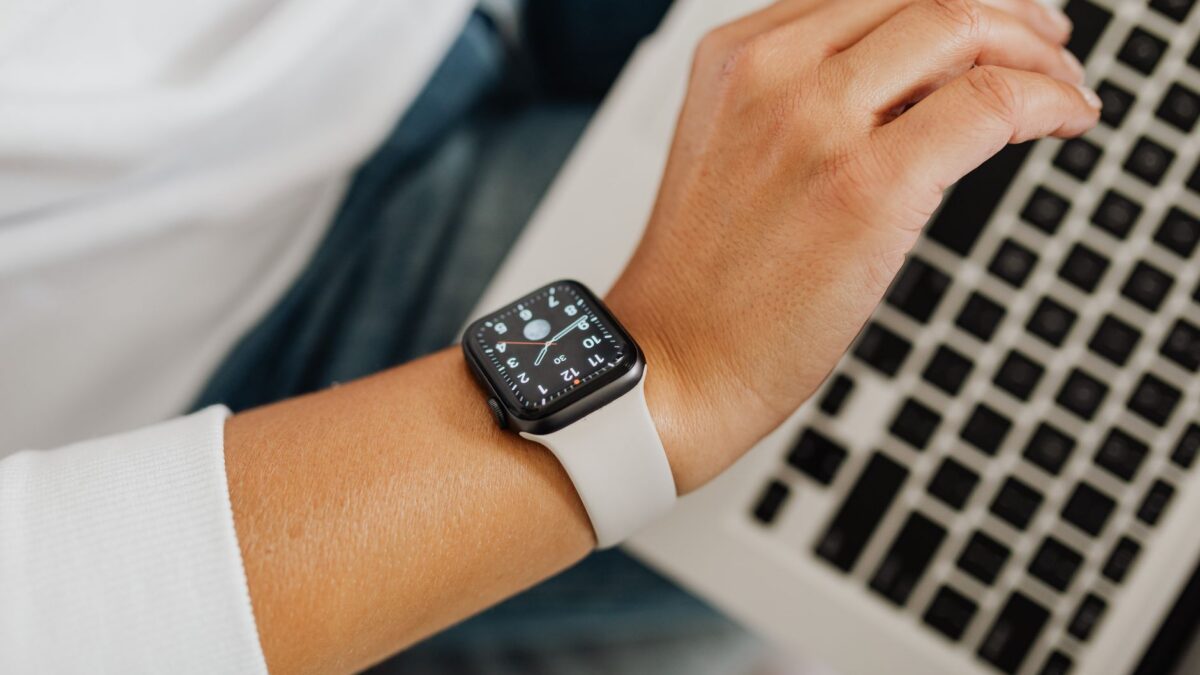
An Apple Watch that stops connecting to its iPhone can almost always be fixed at home. Check that Bluetooth and Wi-Fi are on and Airplane Mode is off on both devices, restart both, and install any pending iOS and watchOS updates. If the watch still shows it is disconnected, unpair it in the Watch app on the iPhone and pair it again from the backup.
How do you know the Apple Watch is disconnected?
A disconnected watch shows a small red iPhone icon with a line through it, or a red X, at the top of the watch face or in Control Center. Notifications stop arriving on the wrist, the Weather and Activity apps stop updating, and the Watch app on the iPhone may say the watch cannot be reached. If the watch only loses the connection now and then, the cause is usually distance or a setting. If it never reconnects, work through the steps below in order.
Which settings should you check first?
Bluetooth on the iPhone is the first thing to check, because the watch talks to the phone over Bluetooth when they are close and over Wi-Fi when they are not.
- On the iPhone, open Settings and make sure Bluetooth and Wi-Fi are both turned on. Turning them off from Control Center only disconnects accessories for a while, so use the Settings app to be sure.
- On the watch, press the side button to open Control Center and check that Airplane Mode is off.
- Look for Airplane Mode on the iPhone too. Some setups mirror it from the phone to the watch.
- Keep the two devices next to each other while you test. Walls, other wireless devices and a long distance all weaken a Bluetooth link.
If other Bluetooth accessories also fail on the same iPhone, the problem may be with the phone itself, and our guide to fixing Bluetooth pairing on iPhone and other devices covers that side.
Does restarting the iPhone and watch help?
Restarting both devices fixes a large share of connection problems, and it takes about two minutes. Turn the iPhone off from Settings, General, Shut Down, then turn it back on. On the watch, press and hold the side button until the power icon appears, tap it, and slide to turn the watch off. Hold the side button again until the Apple logo shows.
Restart the iPhone first and the watch second, then wait a minute with both unlocked and close together. The red disconnected icon should disappear on its own. A frozen watch that will not respond can be forced to restart by holding the side button and the Digital Crown together until the Apple logo appears. Use that only when a normal restart does not work.
Could an outdated iOS or watchOS be the cause?
Yes. An Apple Watch needs an iPhone running a version of iOS that supports its watchOS, and a mismatch after one device updates can break the link. On the iPhone, go to Settings, General, Software Update and install anything waiting. Then open the Watch app, tap General, then Software Update, to update the watch. Keep the watch on its charger and the iPhone on Wi-Fi during the update.
Older iPhones eventually stop getting new iOS versions, and new watch models need a recent phone. Apple lists which iPhone each watch model and watchOS version requires on Apple Support. A time or date that looks wrong on the watch can also point to a sync problem; one recent example is covered in Apple’s fix for the watch showing the wrong hour.
How do you reset network settings on the iPhone?
Resetting network settings clears saved Wi-Fi networks, Bluetooth pairings and VPN settings on the iPhone, which removes a corrupted setting that can block the watch. Go to Settings, General, Transfer or Reset iPhone, Reset, and choose Reset Network Settings. You will need to rejoin Wi-Fi networks and reconnect other Bluetooth accessories afterward, such as earbuds or a car. Your photos, apps and messages stay where they are.
Try this before unpairing, since it is quicker and does not touch the watch.
How do you unpair and re-pair an Apple Watch?
Unpairing and re-pairing is the most thorough fix, and the iPhone makes a backup of the watch before it erases it, so health and activity data come back when you restore. Follow these steps with the watch and iPhone close together:
- Open the Watch app on the iPhone and tap All Watches at the top of the My Watch tab.
- Tap the info button next to the watch that will not connect, then tap Unpair Apple Watch.
- On a cellular watch, choose whether to keep or remove the cellular plan. Keep it if you plan to pair the same watch again.
- Enter your Apple Account password to turn off Activation Lock and confirm.
- Wait for the watch to erase itself and show the language or pairing screen.
- Hold the watch near the iPhone, wait for the pairing prompt, and follow the setup. When asked, choose to restore from the backup.
If the iPhone is not available, you can erase the watch on its own from Settings, General, Reset, Erase All Content and Settings. Activation Lock stays on in that case, so you still need the Apple Account password when you set it up again.
When should you contact Apple?
Contact Apple when the watch will not pair even after an erase, when it does not turn on or charge, or when it keeps dropping the connection with a different iPhone too. Those signs point to a hardware fault in the watch’s wireless parts, which only Apple or an authorized service provider can check. Start a repair request through Apple Support or the Apple Support app, and have the watch’s serial number ready from Settings, General, About.
Quick answers
Can the Apple Watch connect to the iPhone over Wi-Fi?
Yes. When the phone is out of Bluetooth range, the watch can stay connected through a Wi-Fi network the iPhone has joined before, as long as Wi-Fi is on for both devices.
Will unpairing delete my health data?
No, as long as the iPhone does the unpairing. It backs up the watch first, and health data also stays in the Health app on the iPhone.
Why does my watch disconnect when the phone is in another room?
Bluetooth range is limited, and walls shorten it. If the watch is not on a known Wi-Fi network, it loses the link until you move closer.
Do the same steps work for AirPods?
Many do, such as checking Bluetooth and restarting, but AirPods have their own reset method, explained in our guide to AirPods that won’t connect or play from one side.